
In the scenario click +, search for LeonAI Priority ERP and choose any module.
The app is already available in Make. There is nothing to install.
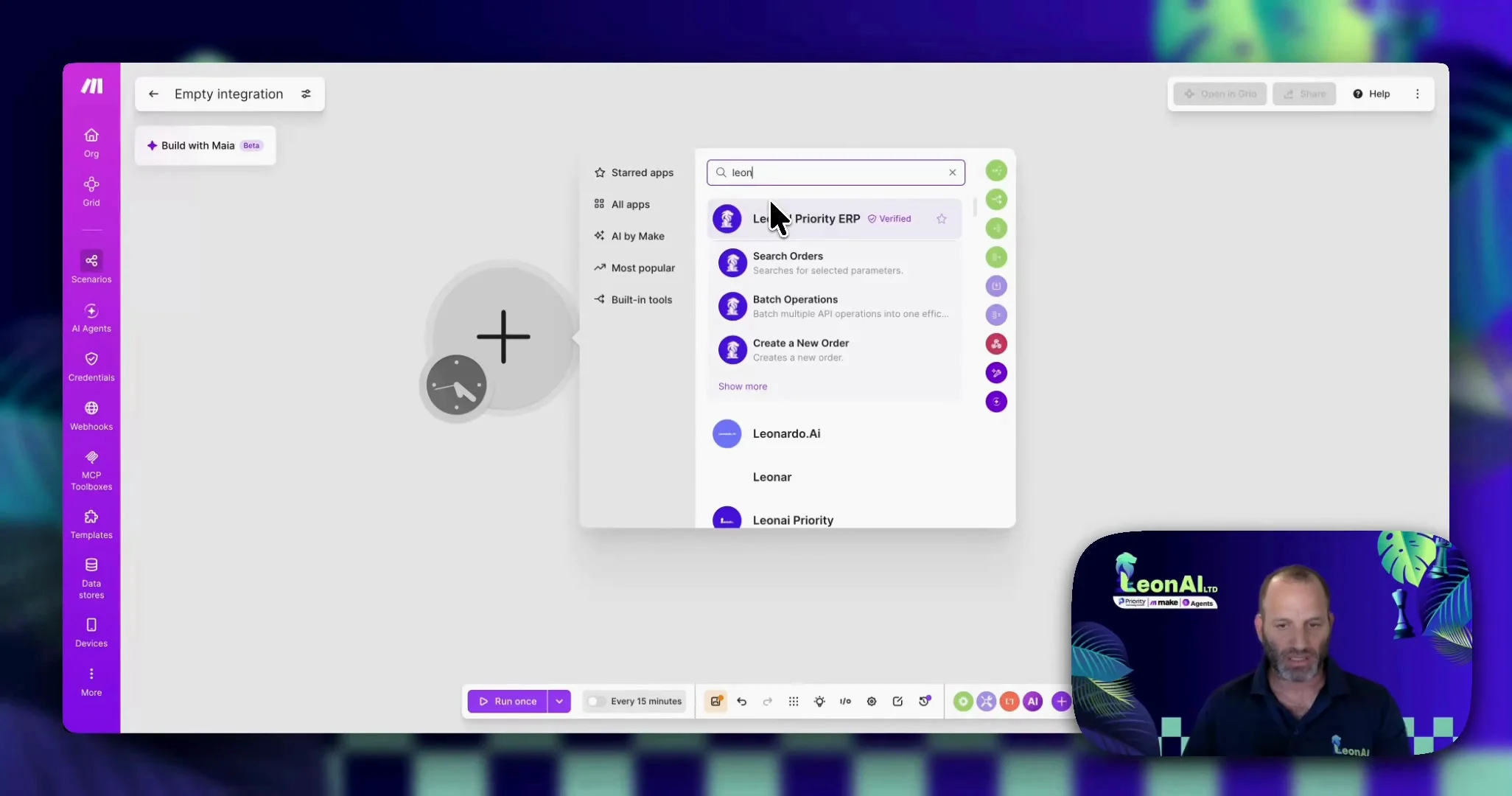
The module is on the canvas and its settings window is open.
Guide
Add a LeonAI Priority ERP module to a scenario, and create a connection from six values.
In the scenario click +, search for LeonAI Priority ERP and choose any module.
The app is already available in Make. There is nothing to install.
The module is on the canvas and its settings window is open.
In the Connection field, click Create a connection.
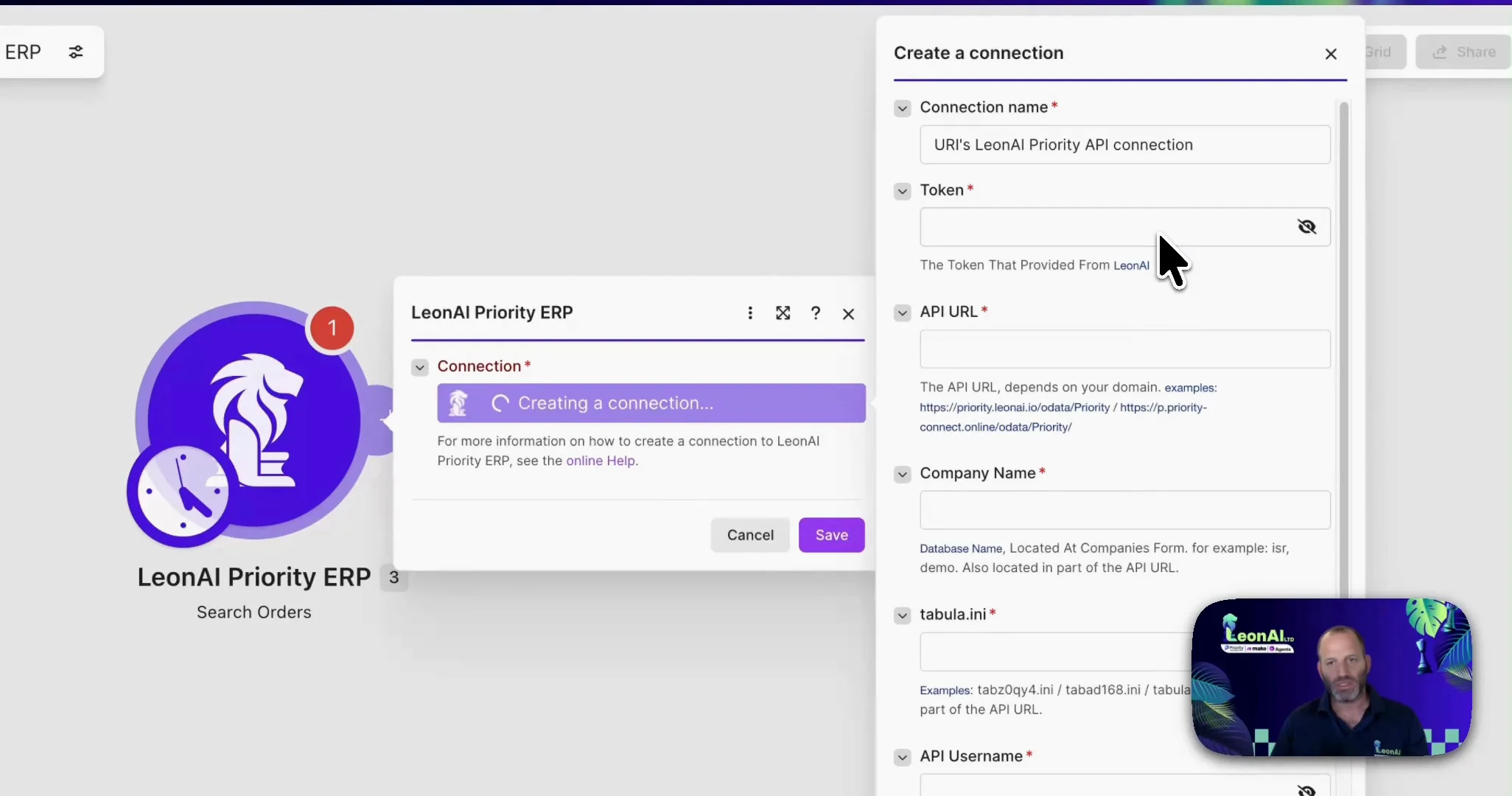
A window with six fields opens.
Fill them in using the table below.
| Field in Make | What to enter |
|---|---|
| Token | LeonAI tokenLeonAI token → |
| API URL | Server address + /odata/Priority/The Priority API address → |
| Company Name | Company name — the last part of the API addressThe Priority API address → |
| tabula.ini | Settings file — the second-to-last partThe Priority API address → |
| API Username | The personal token from “REST Interface Authentication Tokens”Personal access token (PAT) → |
| Password | Always the word PAT, in capitals |
All six fields are filled in.
Click Save.
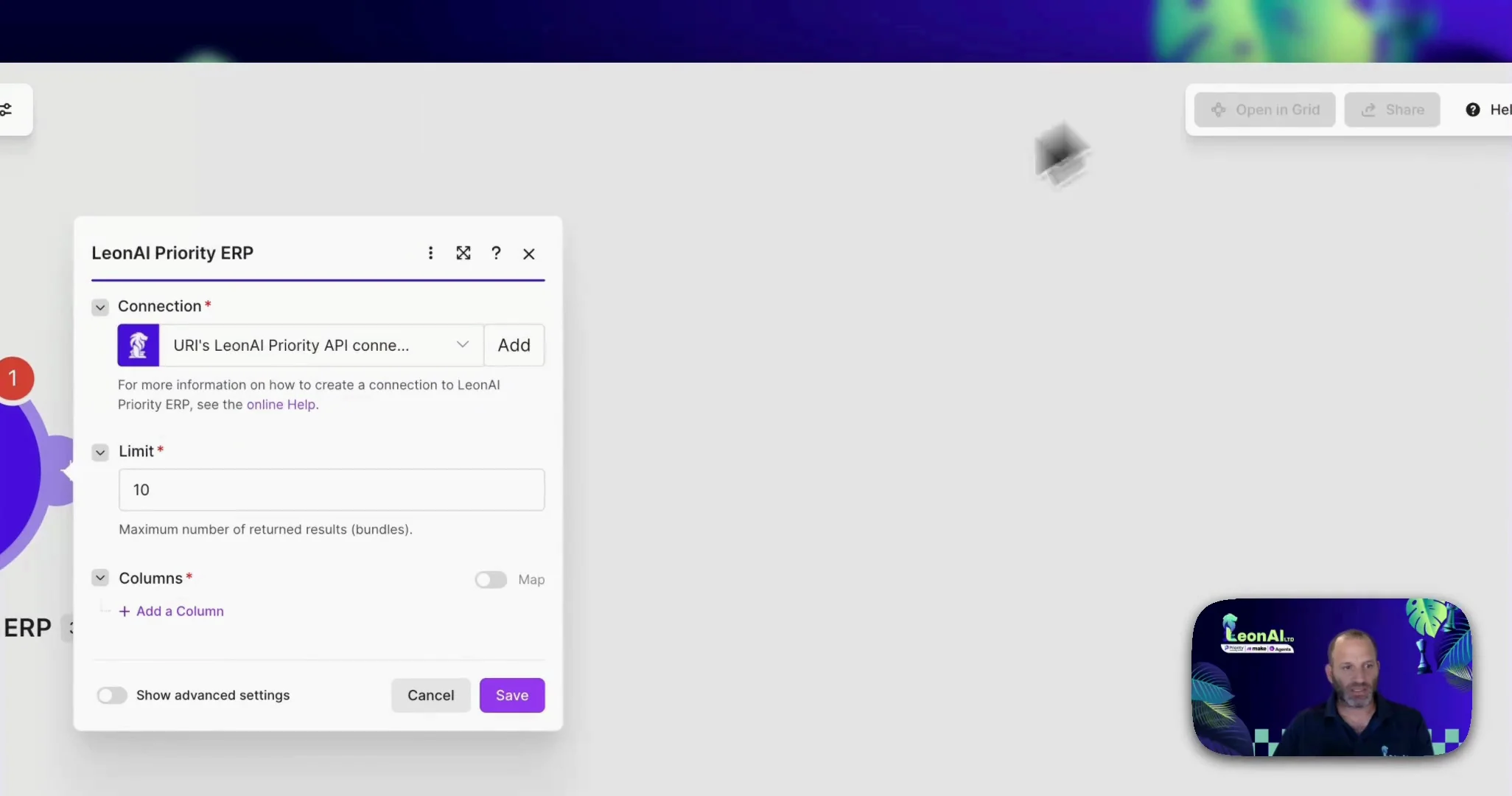
The connection is created and appears in the Connection field.
Login error when saving the connection
In Make, the user name is your personal access token from Priority, and the password is always the word PAT.
We want to connect with a Priority user name and password, not a token
This guide connects with a personal access token (PAT). Connecting with a user name and password works only when the user is marked as an API user in Priority.
We have Priority Zoom, not Pro. Is the licensing the same?
With Priority Pro, licensing is as on the website. With Priority Zoom, the API is opened in Priority through us, so the pricing is different.
This guide is step 7 of 7 in the journey Connecting Priority to the LeonAI app in MakeThe same content, in its place in the sequence.
To the journey