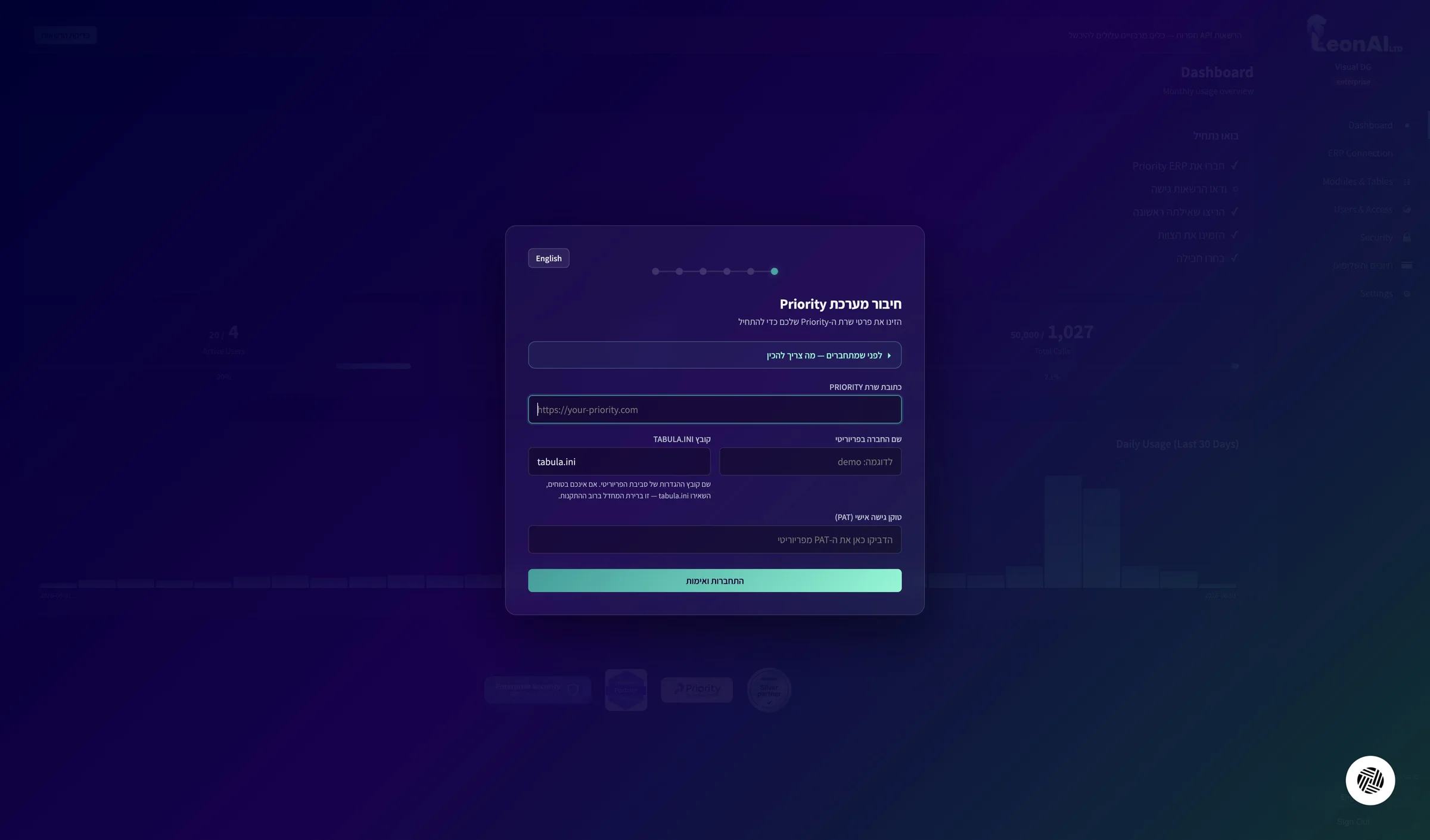
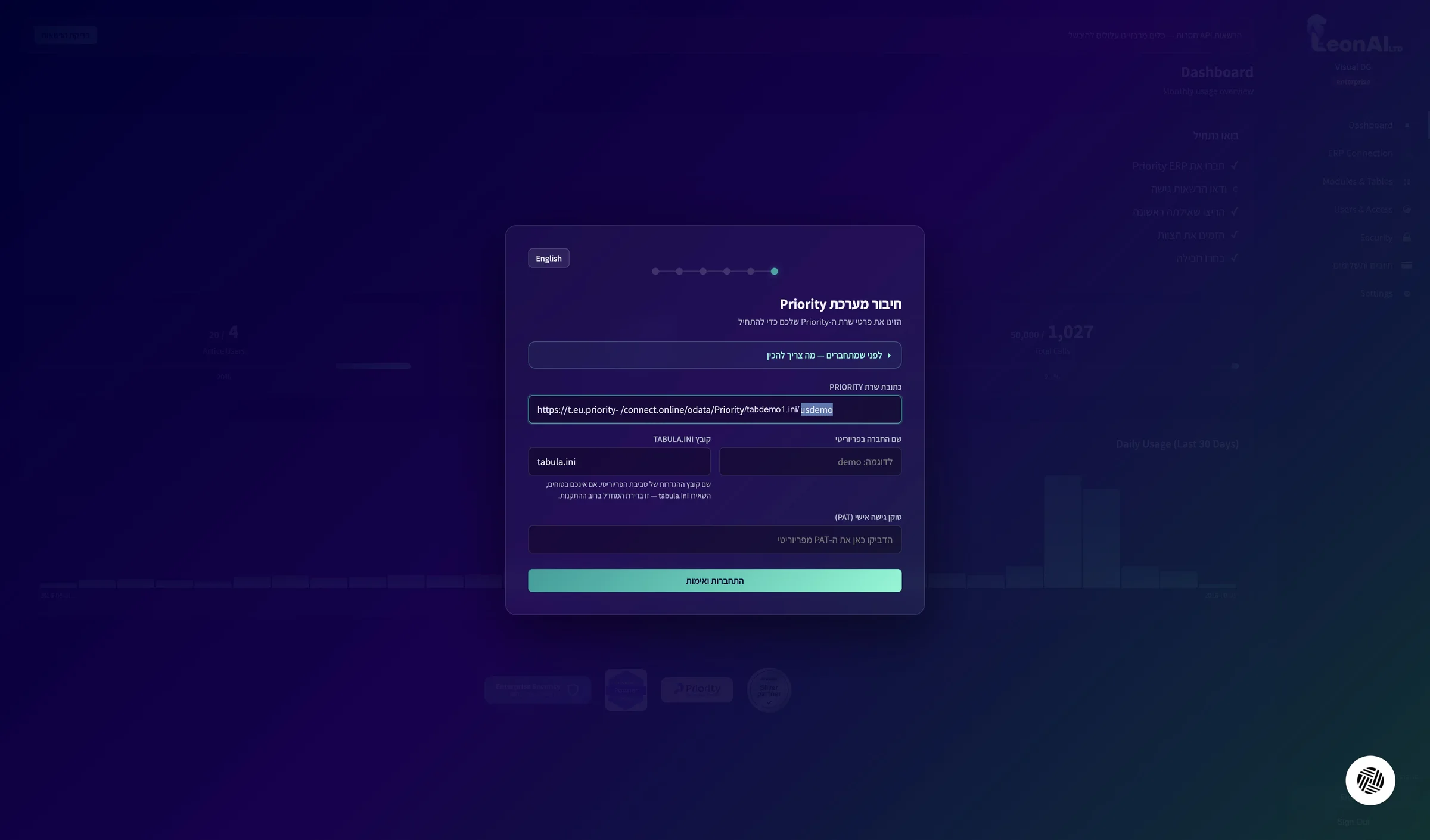
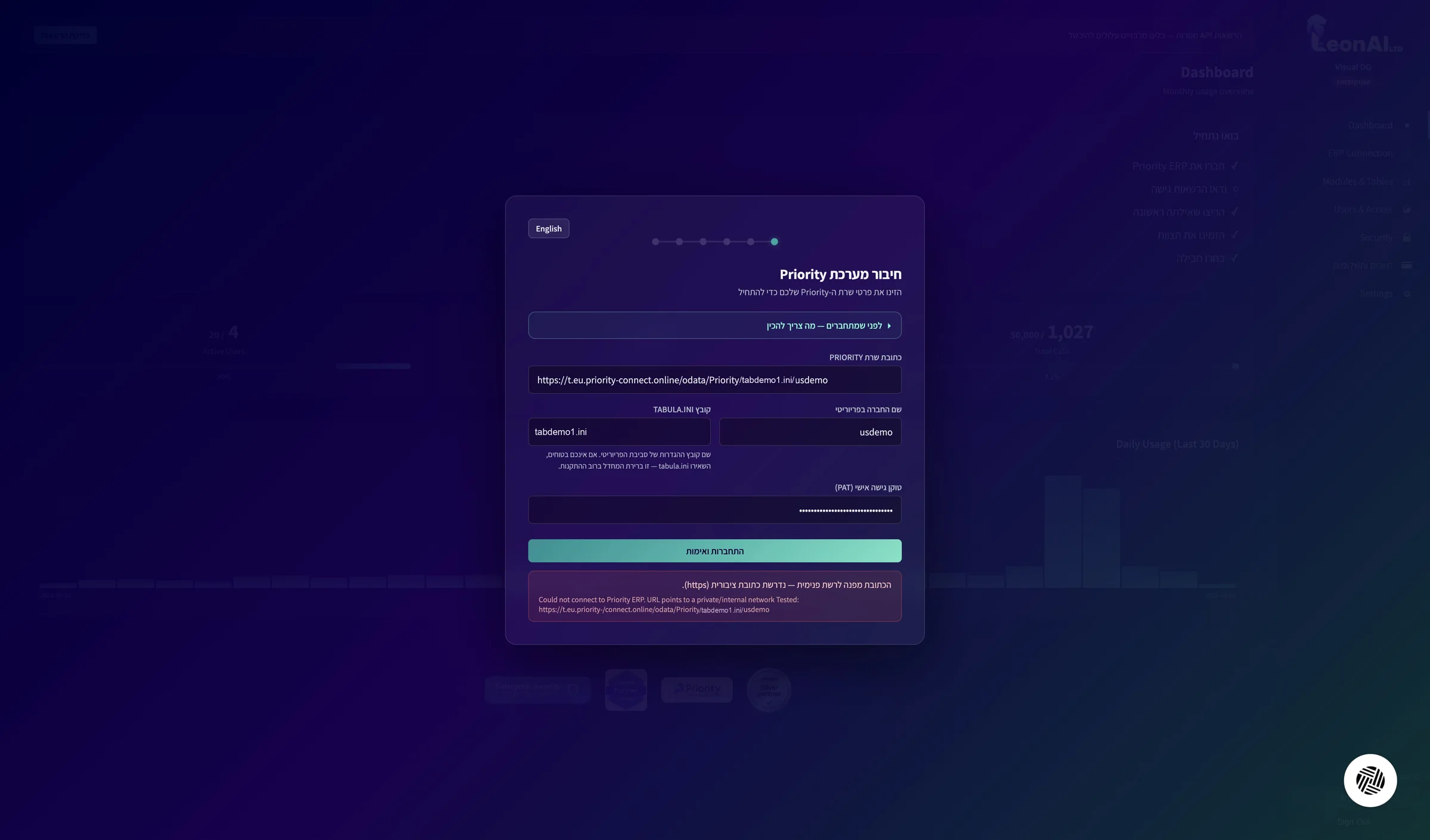
In the LeonAI tab, in the Connect your Priority system window, paste the full address into the PRIORITY server address field.
If you are not sure what is needed, open “Before you connect — what to prepare” at the top of the window. Make sure the address starts with https and that no space got in when you copied it.
The part priority-connect.online appears as one unbroken word.
2
Enter the company name
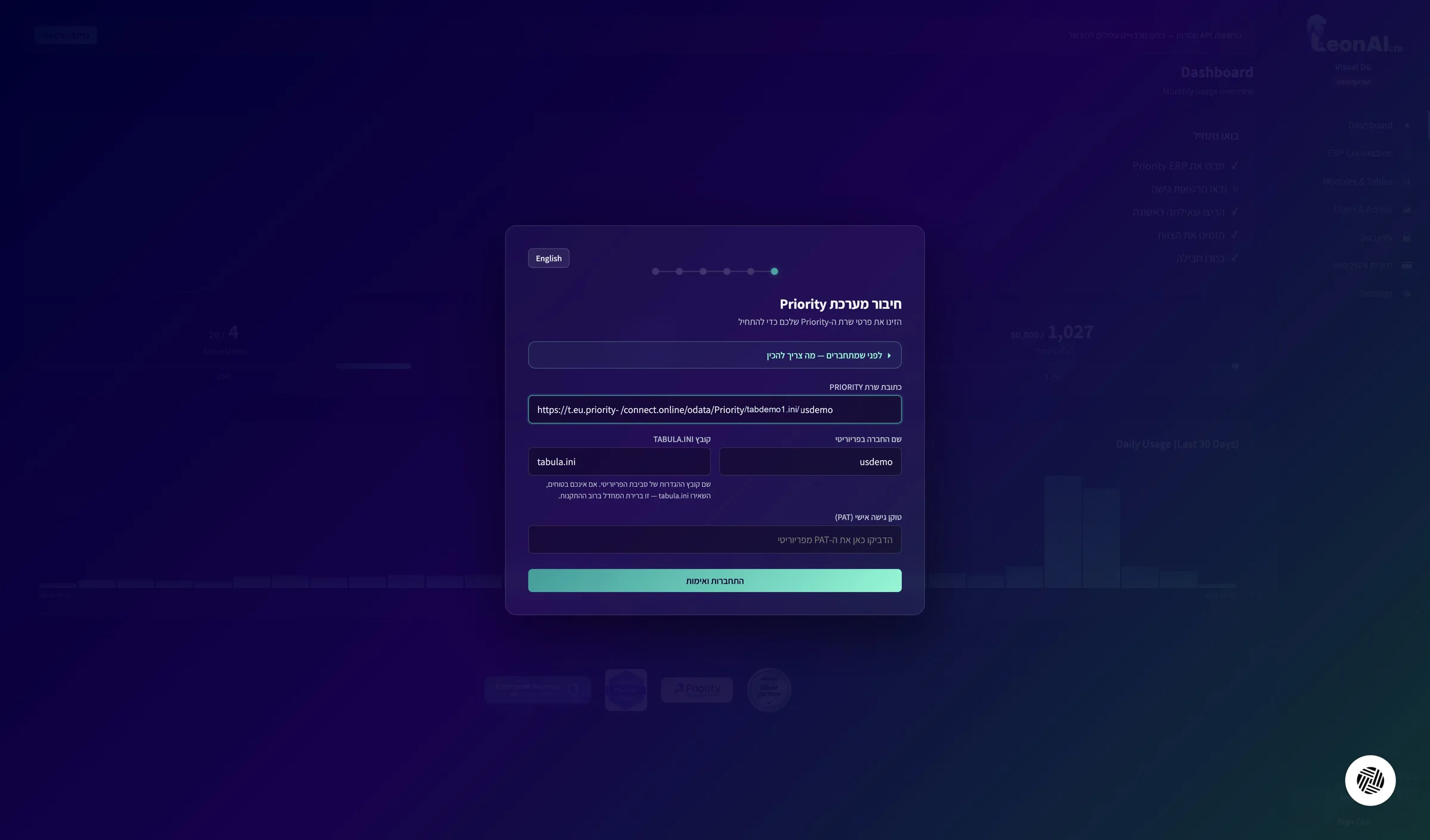
In the Company name in Priority field, enter the last part of the address — in the example: usdemo.
The company name is the code of your company environment in Priority, not its trading name. It always appears at the end of the API address you copied.
The value in the company name field matches the last part of the address.
3
Enter the settings file
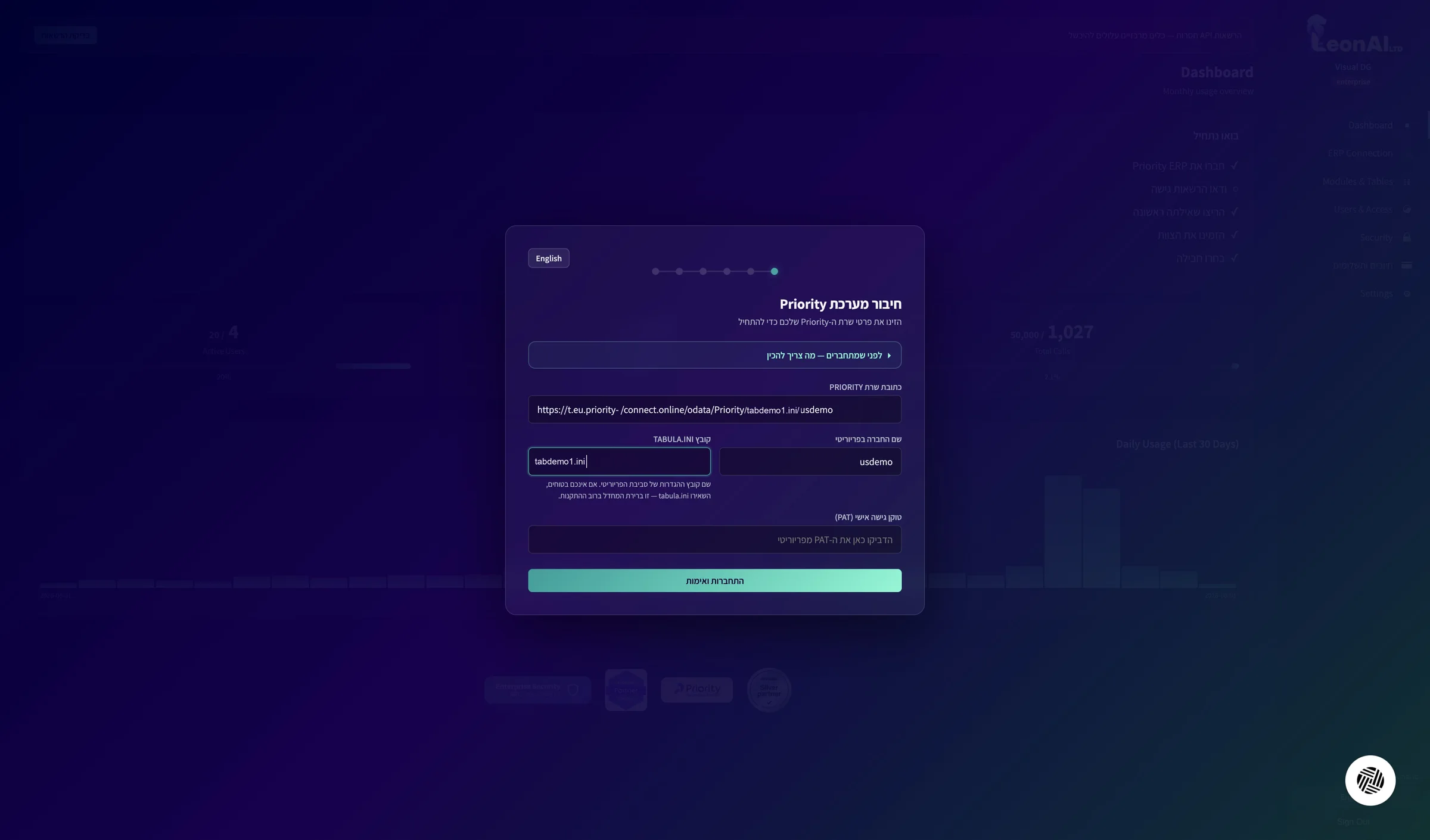
In the TABULA.INI file field, enter the part before the company name in the address — in the example: tabdemo1.ini.
In Priority Cloud it is never tabula.ini: copy the file name exactly as it appears in your address.
The file name in the field matches the corresponding part of the API address.
4
Paste the token
Paste the token into the Personal access token (PAT) field.
The field hides the characters after you paste. Make sure you pasted the full token you copied, not the hidden version shown in the list in Priority.
All four fields are filled in: server address, company name, settings file and token.
5
Connect and verify
Click Connect and verify.
If an error says the address points to a private network and a public address is required, check the server address: the part priority-connect.online must appear as one unbroken word. Fix it and click again.
The connection succeeded and the “Access permission check” screen opens.
6
Check the access permissions
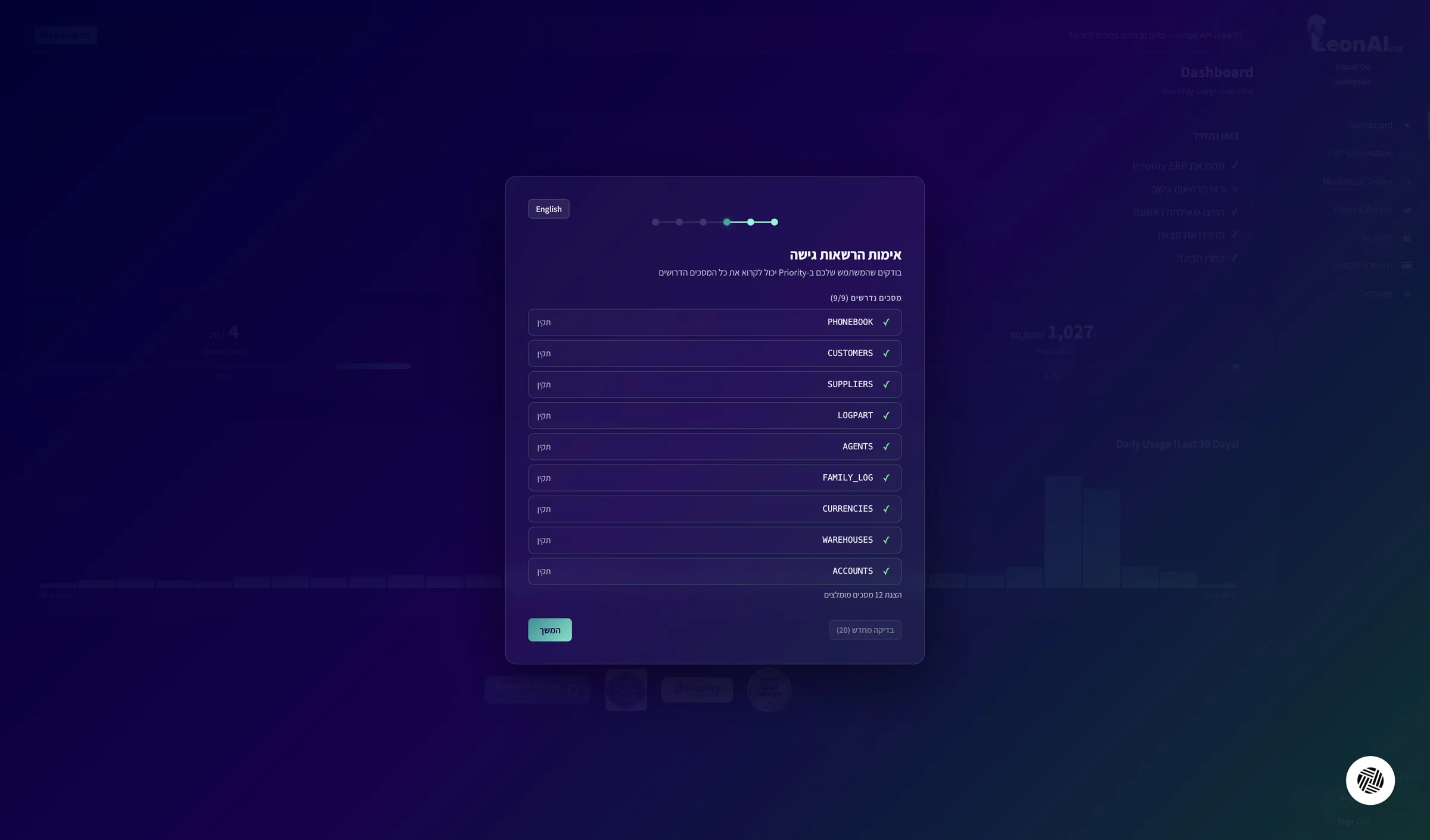
On the Access permission check screen, make sure all the required forms are marked OK, and click Continue.
LeonAI checks that the user you chose can read the forms it needs, such as CUSTOMERS, SUPPLIERS and LOGPART.
All the required forms are OK (in the example: 9/9).
7
Review the detected modules
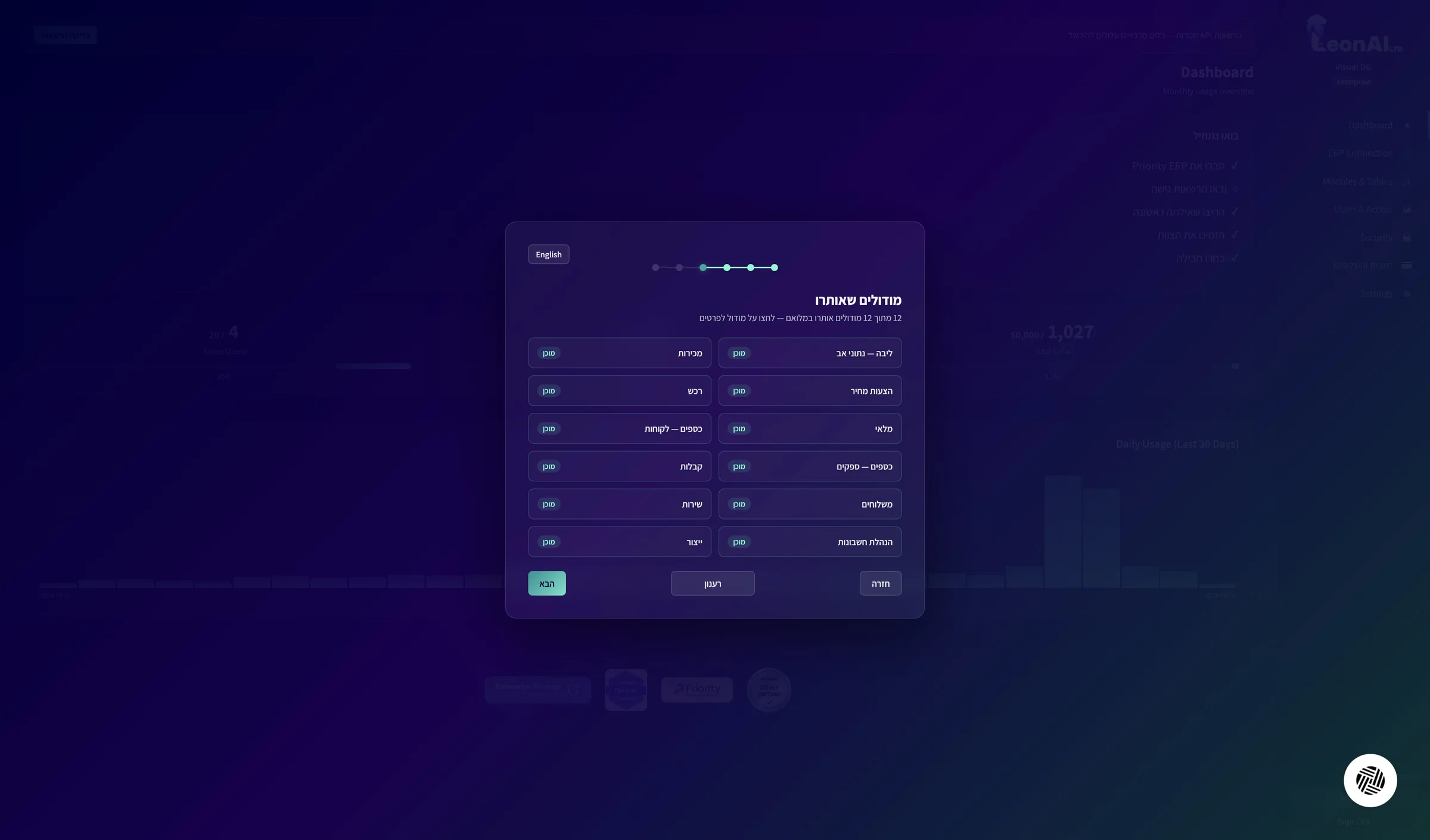
On the Detected modules screen, check that the modules you use are marked Ready, and click Next.
LeonAI detects which Priority modules are active for you — for example sales, purchasing, inventory and finance. Clicking a module shows details, and “Refresh” runs the detection again.
The modules that matter to you are listed as ready.
8
Set defaults and finish
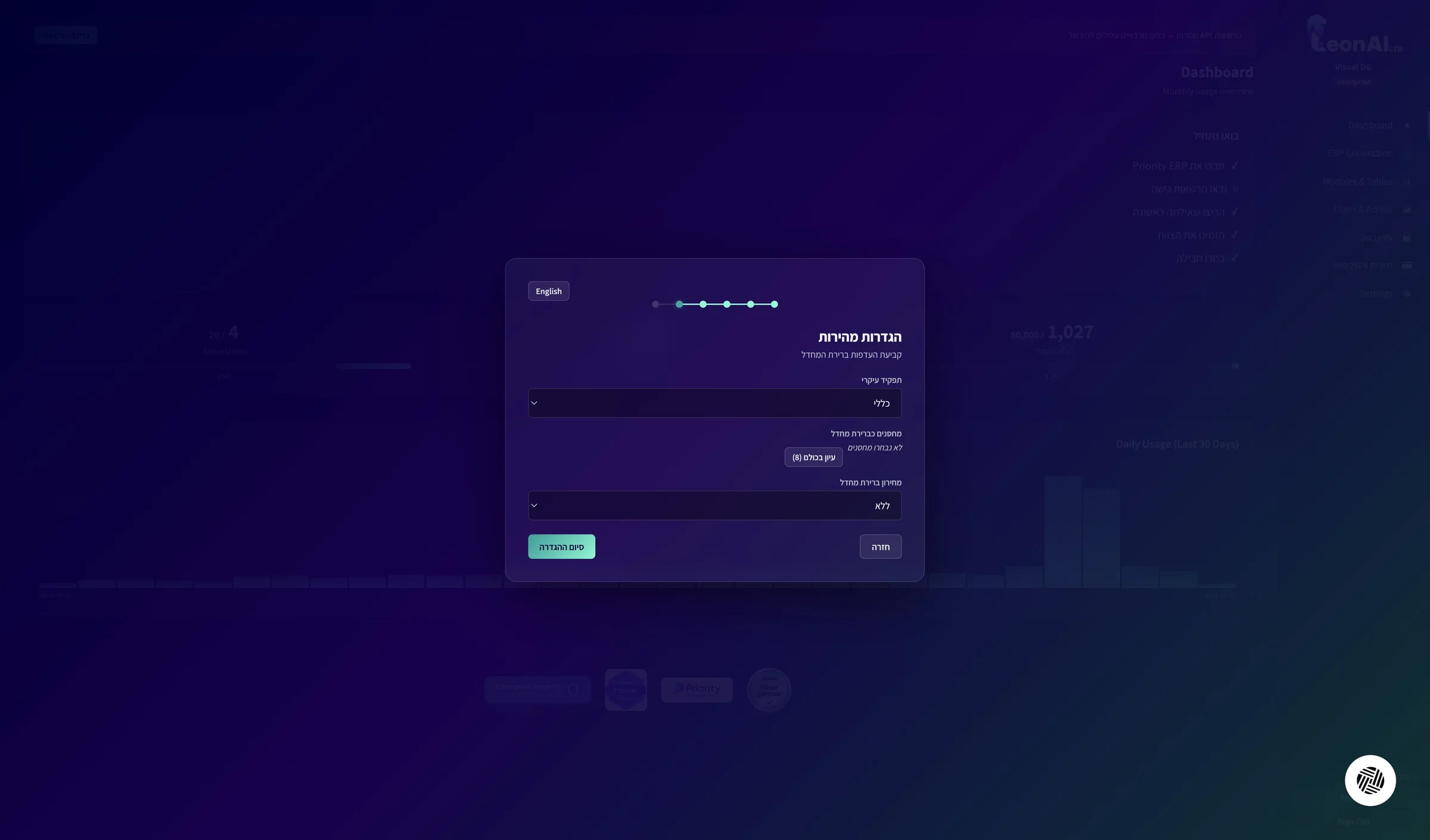
On the Quick settings screen choose a Main role (in the example: General). If relevant, pick default warehouses through Browse all, and choose a Default price list or leave None. Click Finish setup.
This screen sets the account's default preferences: main role, warehouses and price list. The warehouse and price-list lists load directly from Priority.
The “All set!” screen opens.
9
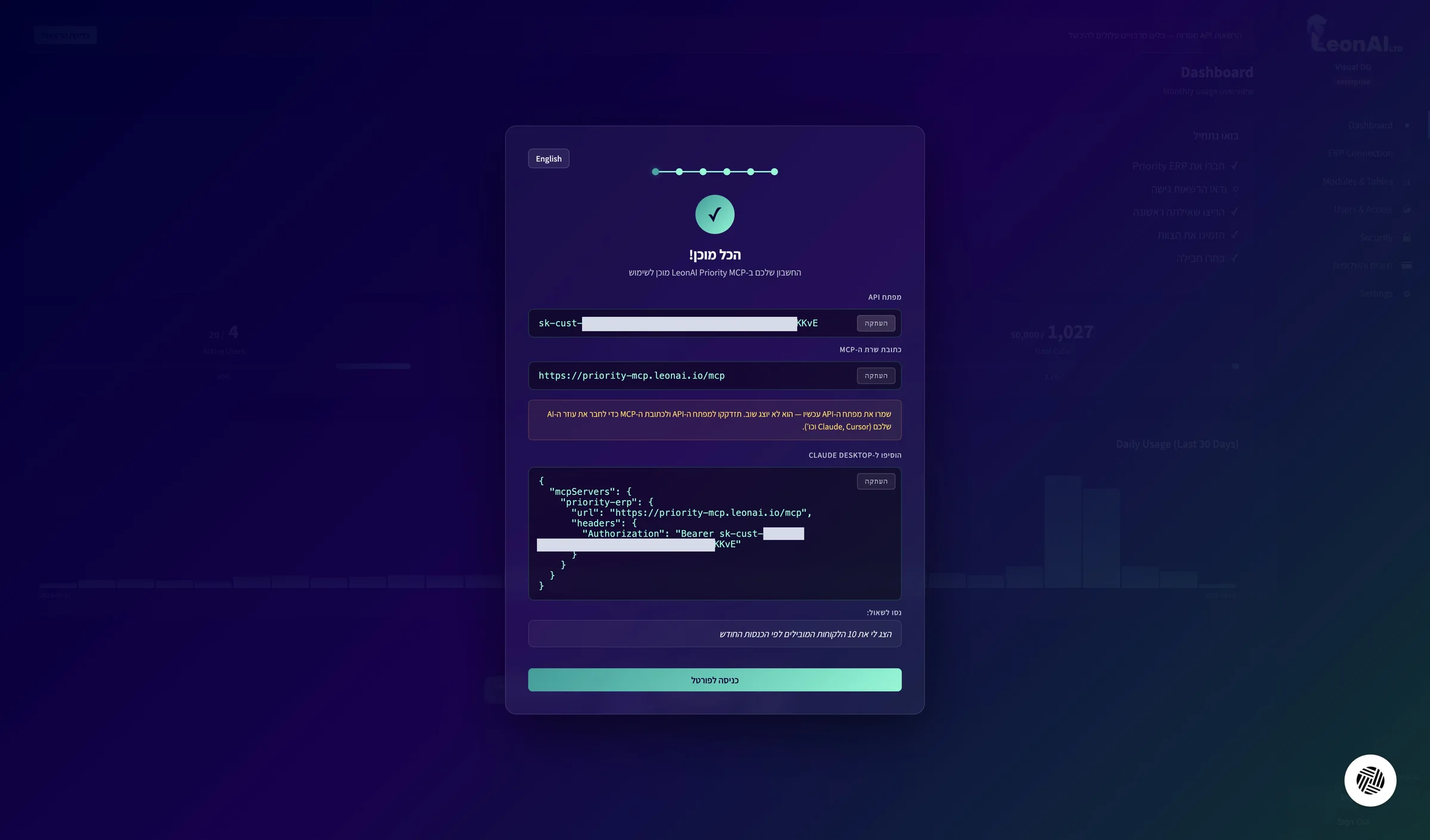
Save the API key
Critical step
On the All set! screen click Copy next to API key and keep it somewhere safe. Copy the MCP server address too.
The key is shown only once and will not be shown again. You will need it, together with the email you signed up with, to connect Claude. If you lose it, you can renew it in the admin portal.
You have saved the API key, which starts with sk-cust, and the MCP address.
Stuck? 7 known situations at this step
On the access-permission check screen, a form is not marked OK
The token’s user has no permission for that form
LeonAI checks that the user you chose can read the forms it needs.
Give the user permission for the form in Priority.
Go back to the wizard and click Check again.
I did not save the API key
The key is shown only once
You can renew it in the admin portal.
The URL points to a private network — a public https address is required.
The address broke when it was copied
In Priority's window the address spans two lines, and pasting adds an extra character to it.
Delete the address from the PRIORITY server address field.
Copy it again from Priority's window, or from the email Priority sends.
Make sure priority-connect.online appears unbroken, and click Connect and verify.
Not found: check the company name and the tabula.ini file name.
The company name or the settings file does not match the address
These two values are the last two parts of the API address. In Priority Cloud the settings file is never tabula.ini.
Open the address you copied from Priority.
Enter the second-to-last part in the TABULA.INI file field.
Enter the last part in the Company name in Priority field.
Priority URL must start with https://
The start of the address is missing
The address was copied without the https:// at its start.
Copy the full address from Priority again, from the first character.
Make sure it starts with https://, and click Connect and verify.
Could not reach the server: check the URL, and that the firewall allows the IPs in the prerequisites.
Priority’s server is not answering LeonAI
Either the address is wrong, or your organization's firewall is blocking LeonAI's IP addresses.