Two privacy settings, network access with the LeonAI domain, and AI-powered artifacts.
4 steps2 minEveryone who will use ClaudeUpdated
1
Turn off two switches in Privacy
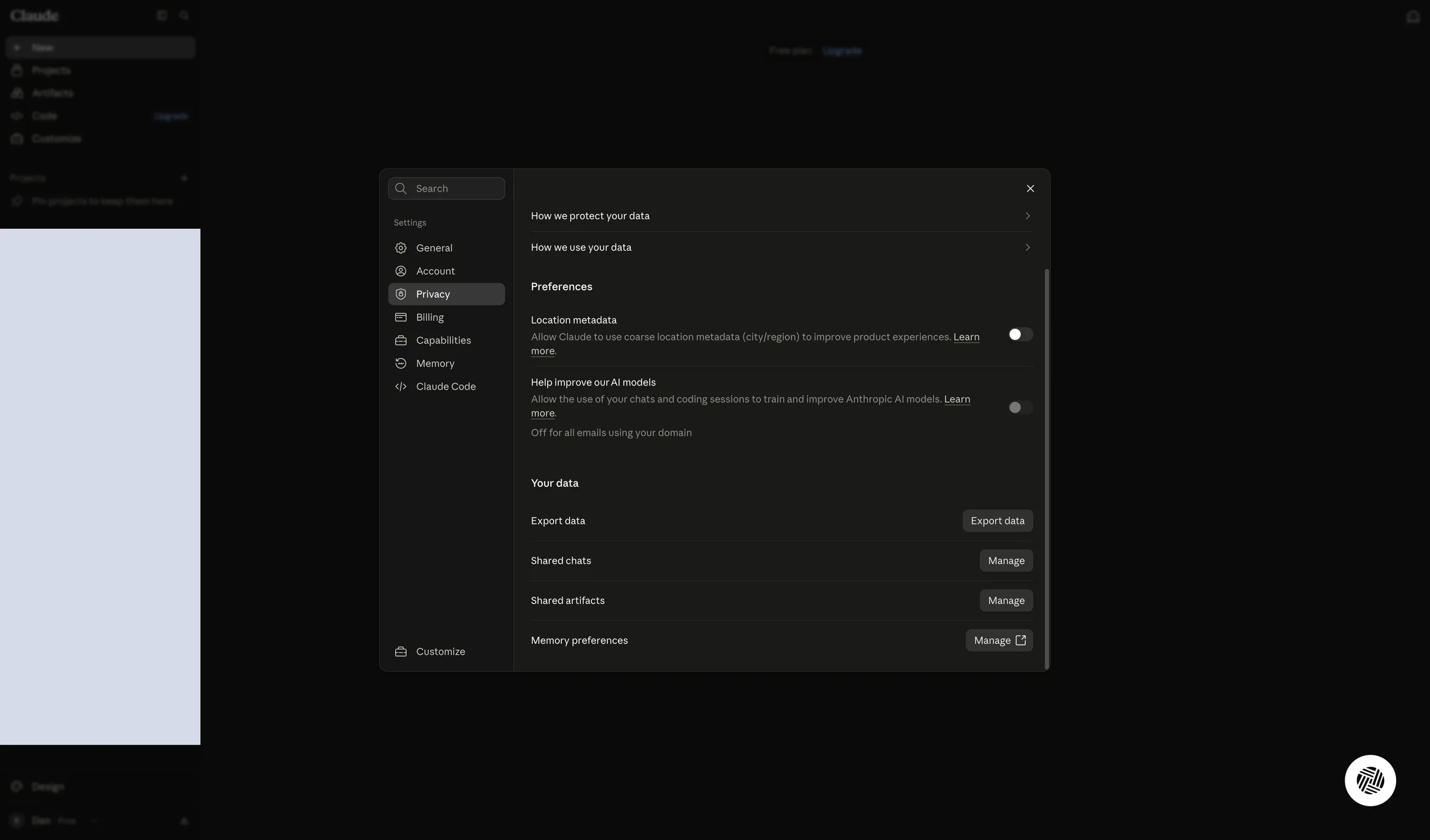
In Claude's settings (Settings) click Privacy, and turn off the Location metadata and Help improve our AI models switches.
According to the descriptions on screen, the first lets Claude use your approximate location (city/region), and the second lets your chats and coding sessions be used to train Anthropic's models.
Both switches are off.
2
Turn on Allow network egress
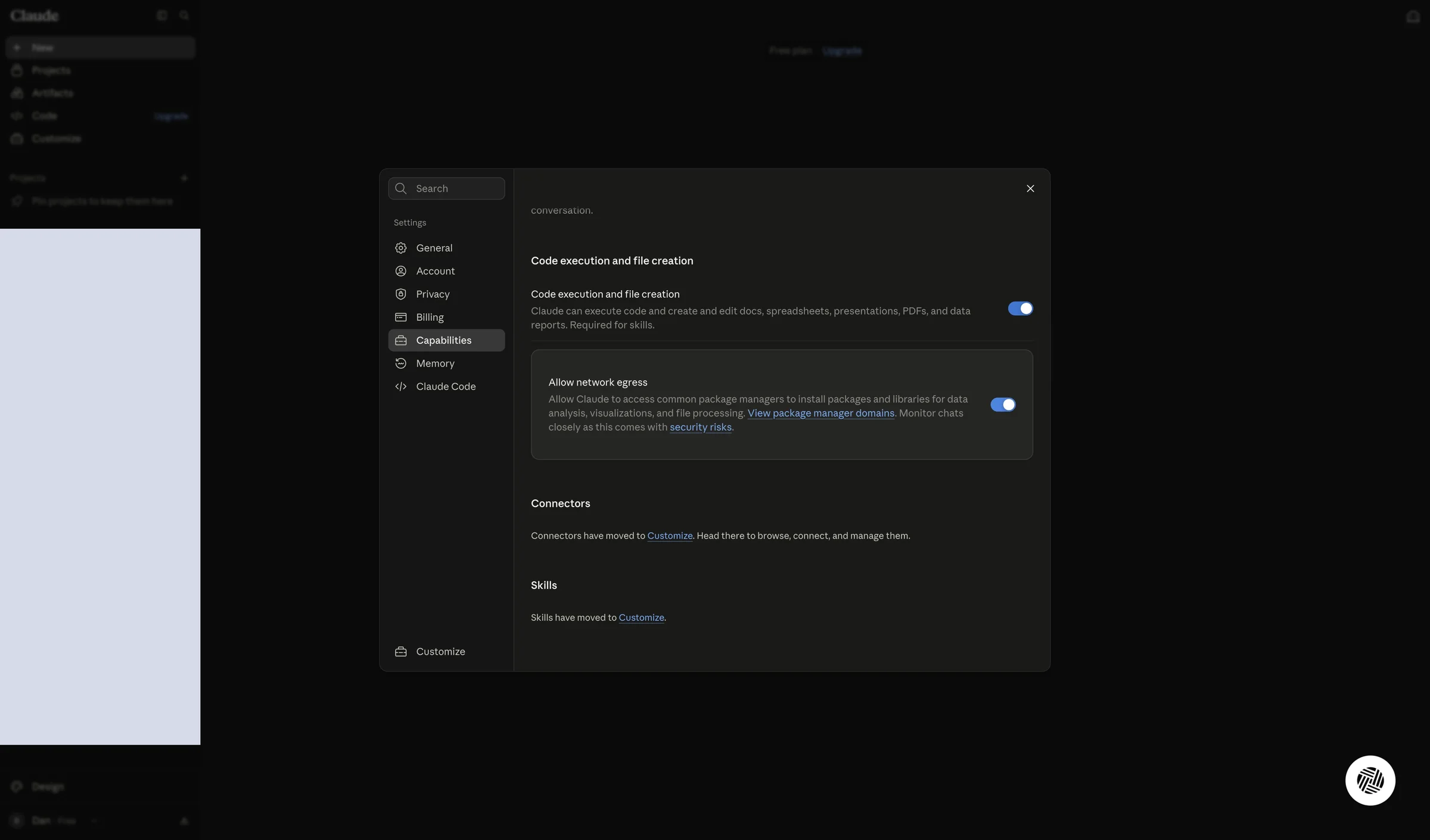
Click Capabilities and turn on the Allow network egress switch.
According to the description on screen, this lets Claude reach common package managers and install libraries for data analysis, visualizations and file processing. The screen notes that this carries security risks and recommends monitoring your chats.
The Allow network egress switch is on.
3
Add priority-mcp.leonai.io to the allowed domains
Critical step
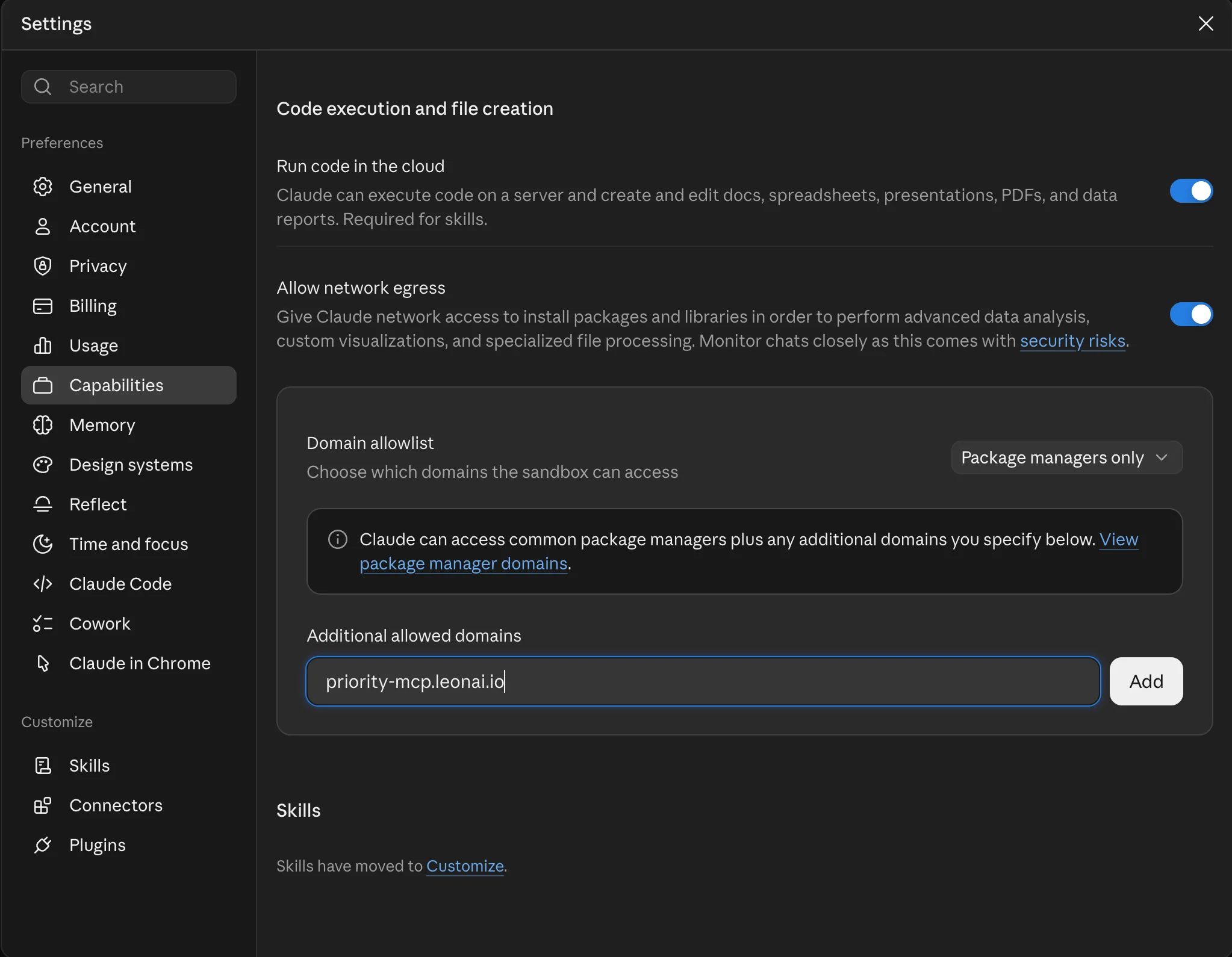
Below the switch, in Additional allowed domains, type priority-mcp.leonai.io and click Add.
You can leave Domain allowlist on Package managers only.
Without this domain, Claude cannot reach the LeonAI server from its code environment.
The domain priority-mcp.leonai.io appears in the list of allowed domains.
4
Turn on AI-powered artifacts
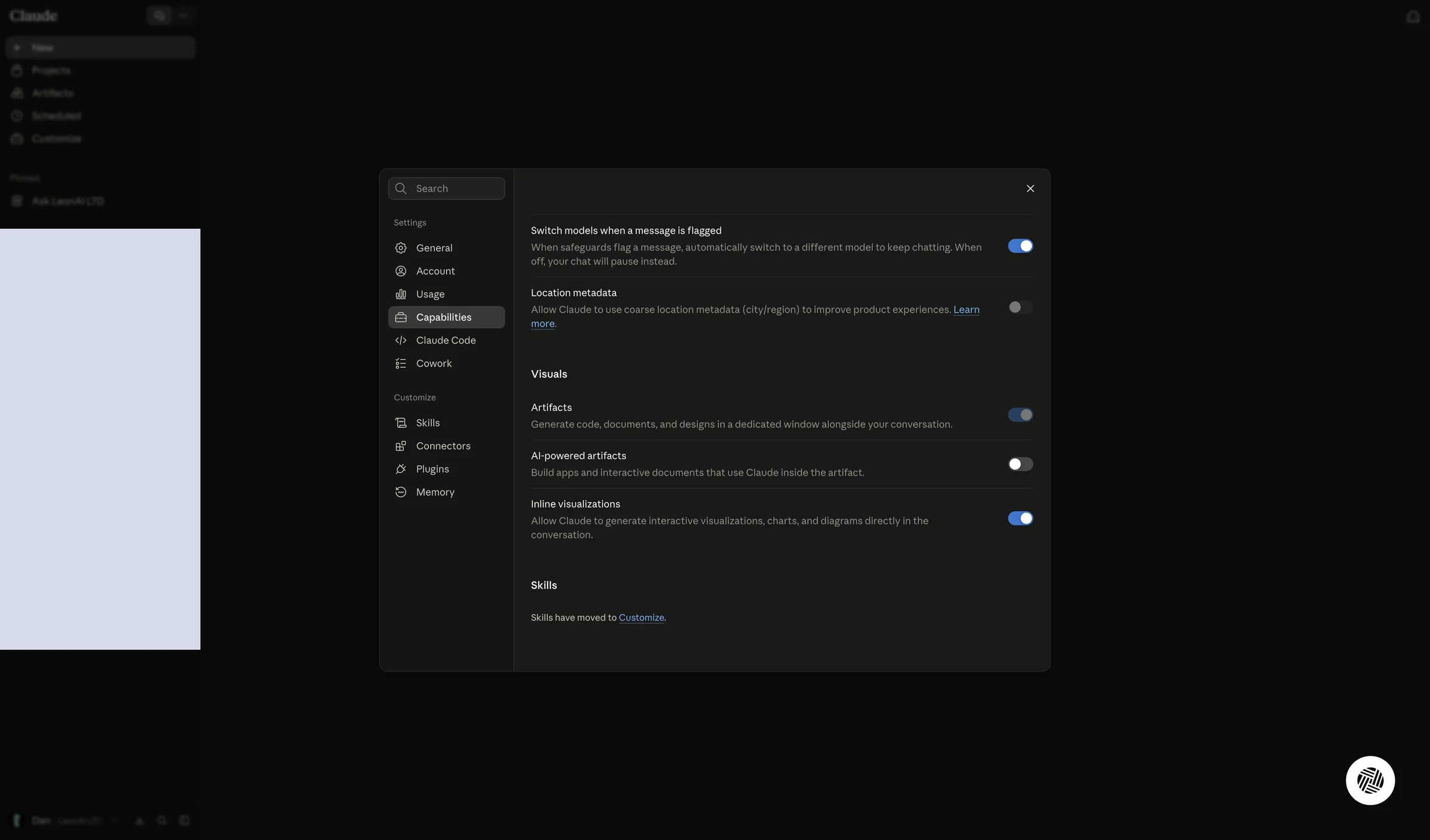
In Capabilities turn on the AI-powered artifacts switch.
According to the description on screen, this lets you build interactive apps and documents that use Claude inside the artifact.