

Start a new chat and ask about your data, for example:
Claude looks for the right LeonAI tools and runs them — for example Query Table to fetch and filter records.
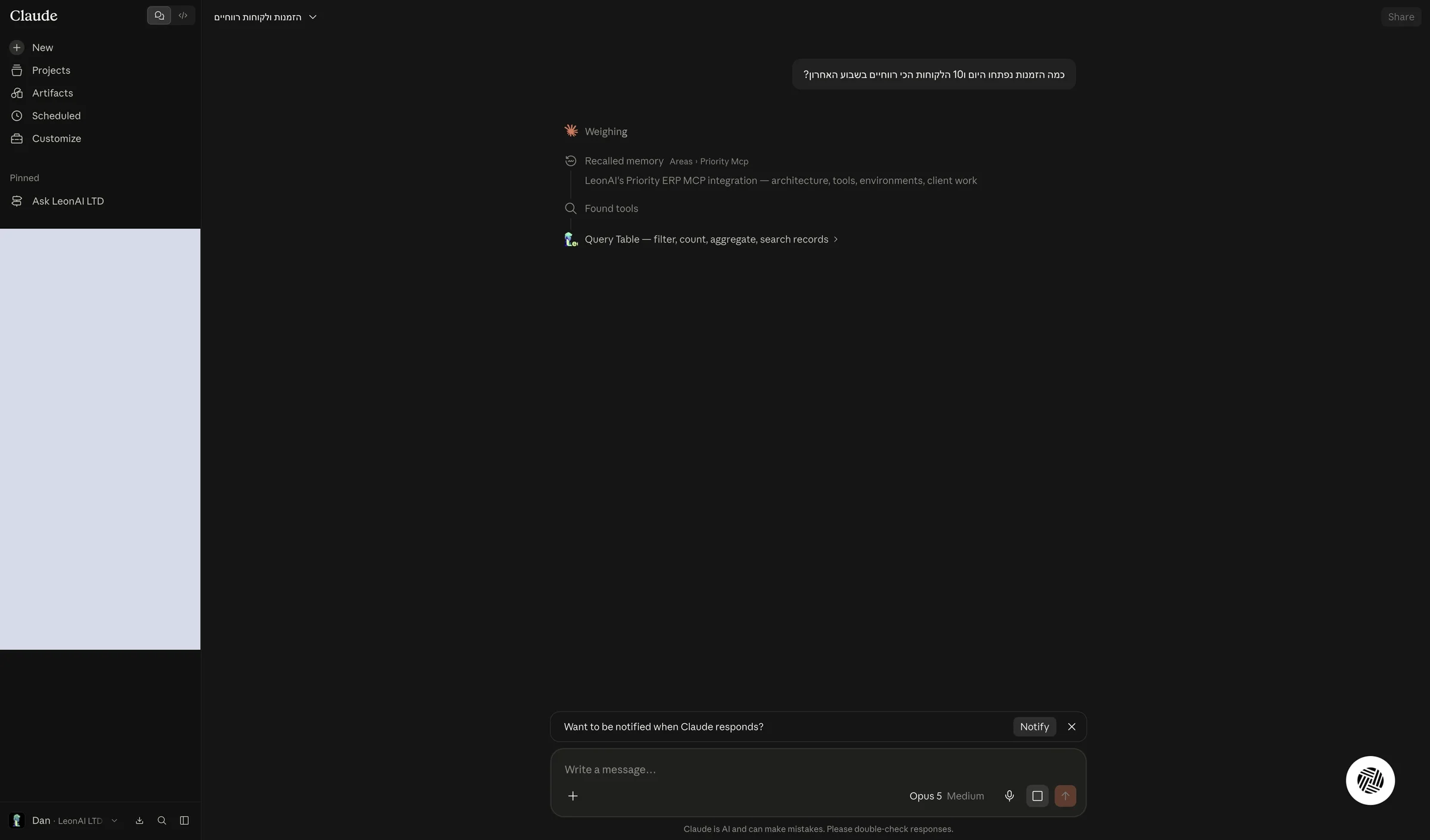
Claude shows that it is using a LeonAI Priority tool.
Guide · Claude (MCP)
Ask Claude about your Priority data, approve the tool, and decide in advance what it may do without asking.
Start a new chat and ask about your data, for example:
Claude looks for the right LeonAI tools and runs them — for example Query Table to fetch and filter records.
Claude shows that it is using a LeonAI Priority tool.
When a permission request for a LeonAI tool appears, choose Always allow or Allow once.
Claude asks for approval the first time it uses each tool. Always allow skips the question next time; Allow once approves only the current action.
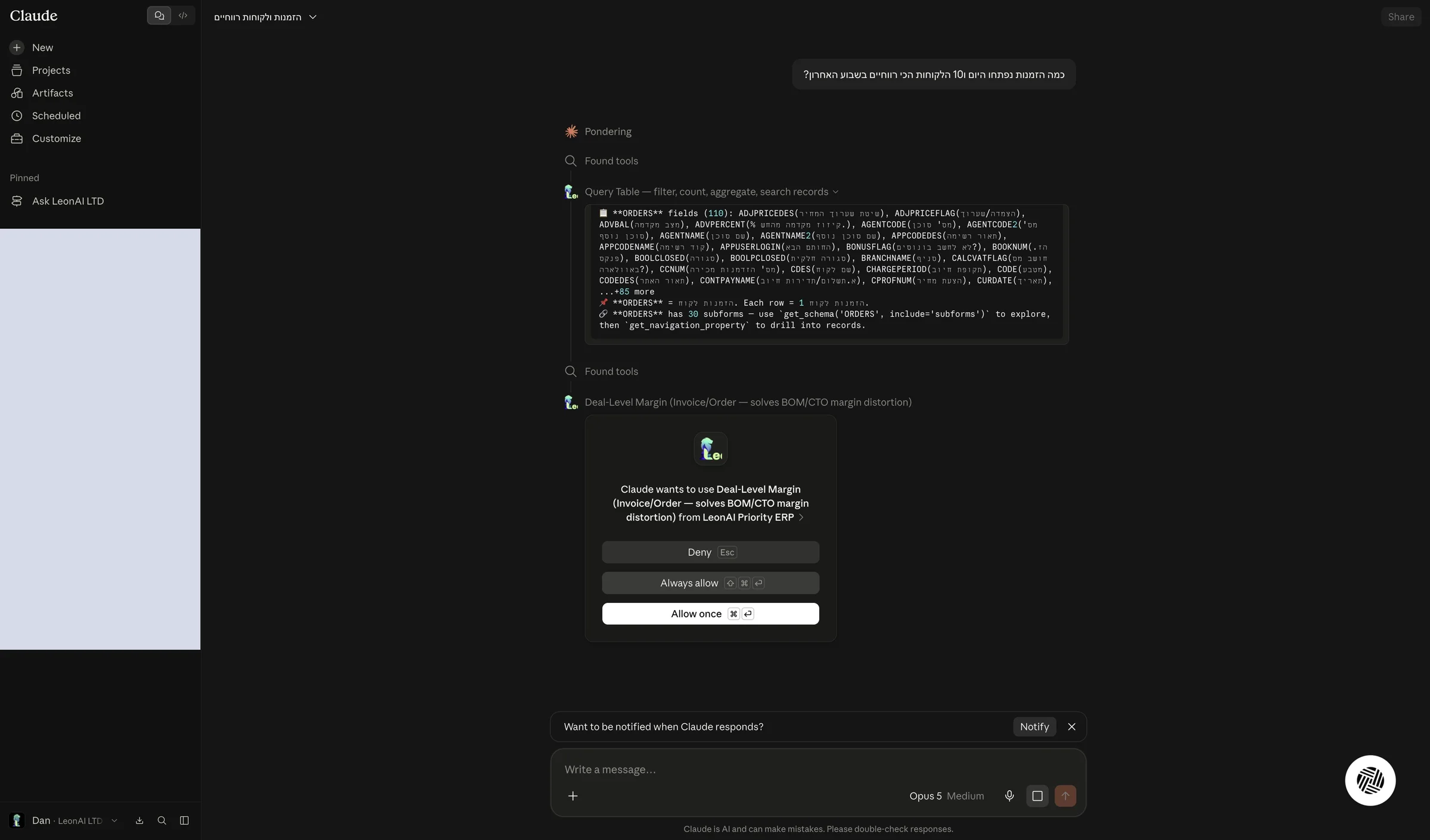
Claude ran a LeonAI Priority tool and returned data from Priority.
In Settings › Connectors, on the LeonAI connector, click the selector next to Read-only tools and choose Always allow.
The read tools only fetch data, so approving the whole group in advance saves repeated permission requests. Each tool has three options: always allow (✓), ask for approval (✋) or block (⊘), and you can still set a different permission for each tool.
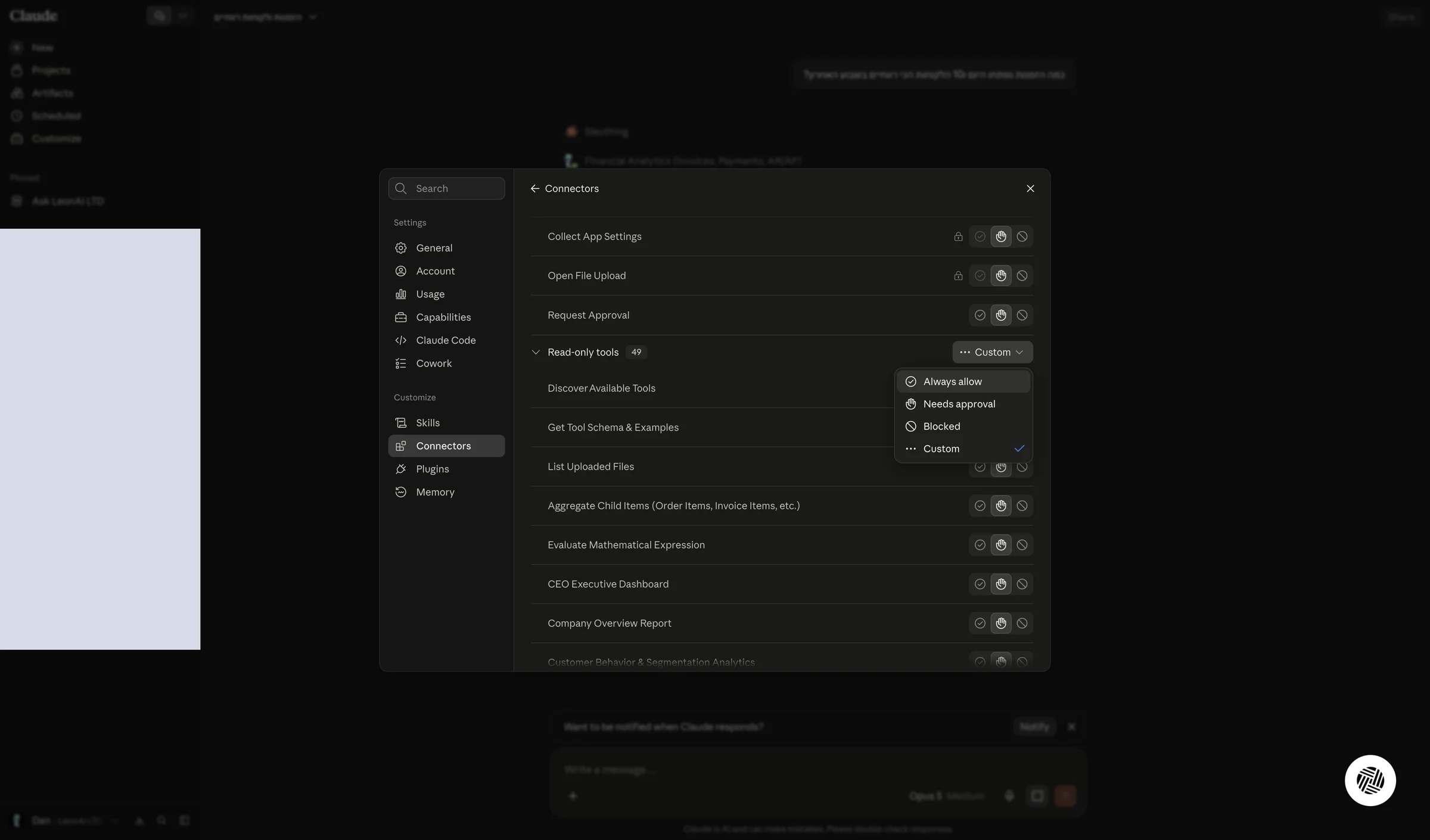
The Read-only tools group is set to Always allow.
On the same screen, the Write/delete tools group is set to Needs approval. Some of its tools are marked with a lock.
The tools in this group can create or update data in Priority, for example Create Priority ERP Entity or Execute a Procedure on a Record. With Needs approval, Claude asks for your approval before every such action. A locked tool's permission cannot be changed.
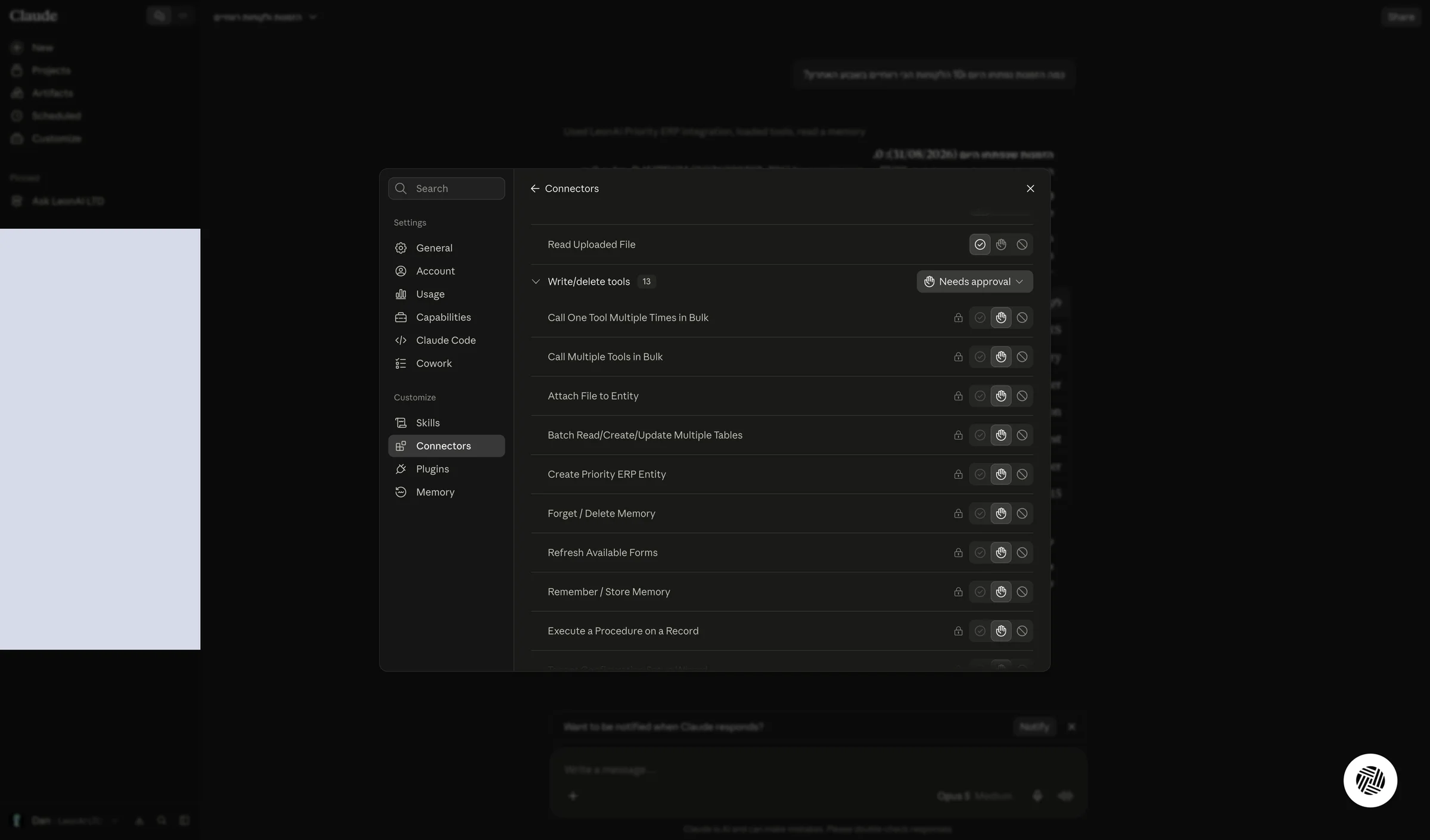
You checked which permission is set for the write tools, and what it means.
This guide is step 8 of 9 in the journey Connecting Priority to Claude with LeonAI Priority MCPThe same content, in its place in the sequence.
To the journey