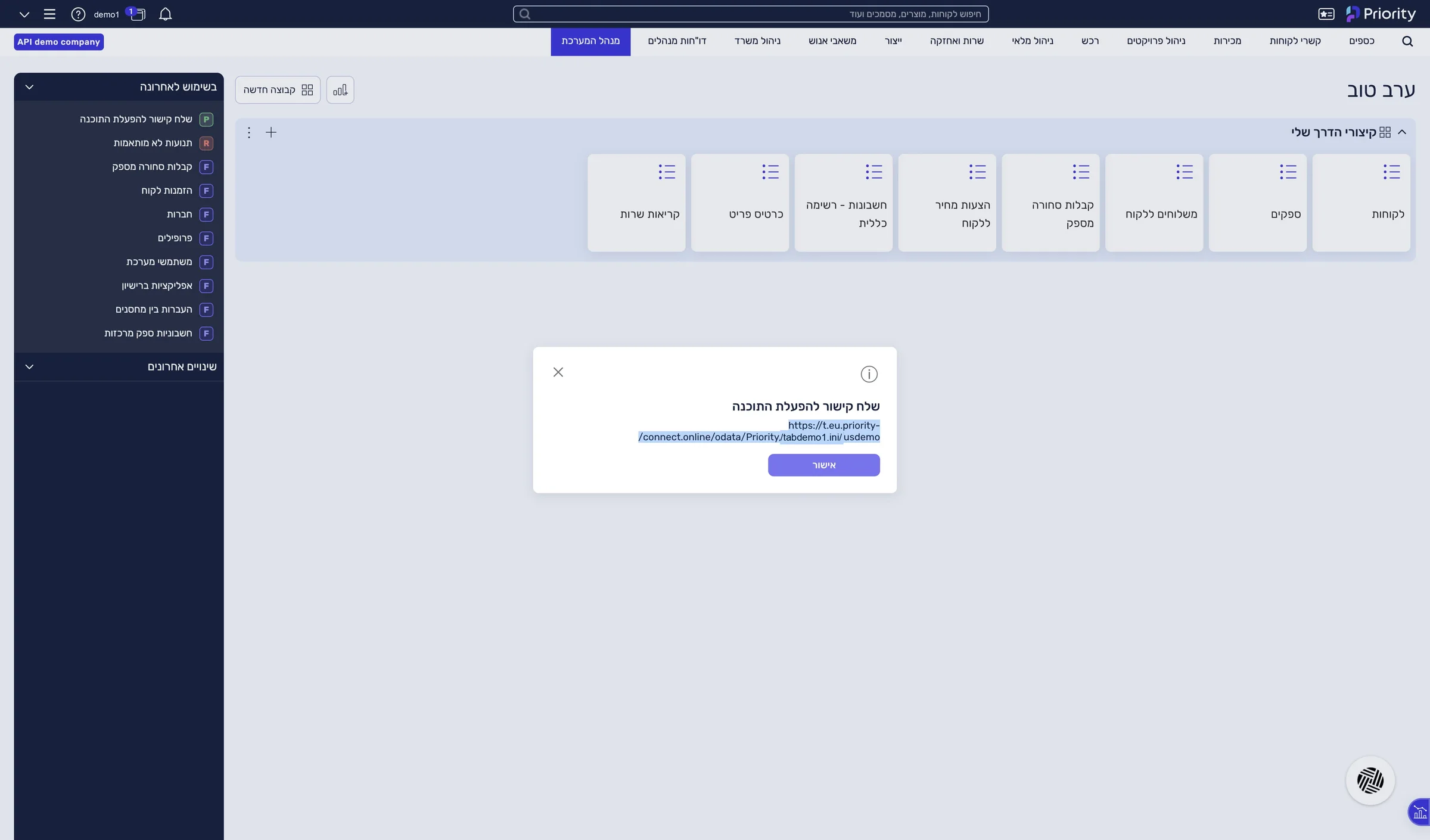
One address from Priority, and the three connection values inside it: the server address, the settings file and the company name.
6 steps2 minPriority system managerUpdated
1
Sign in to Priority
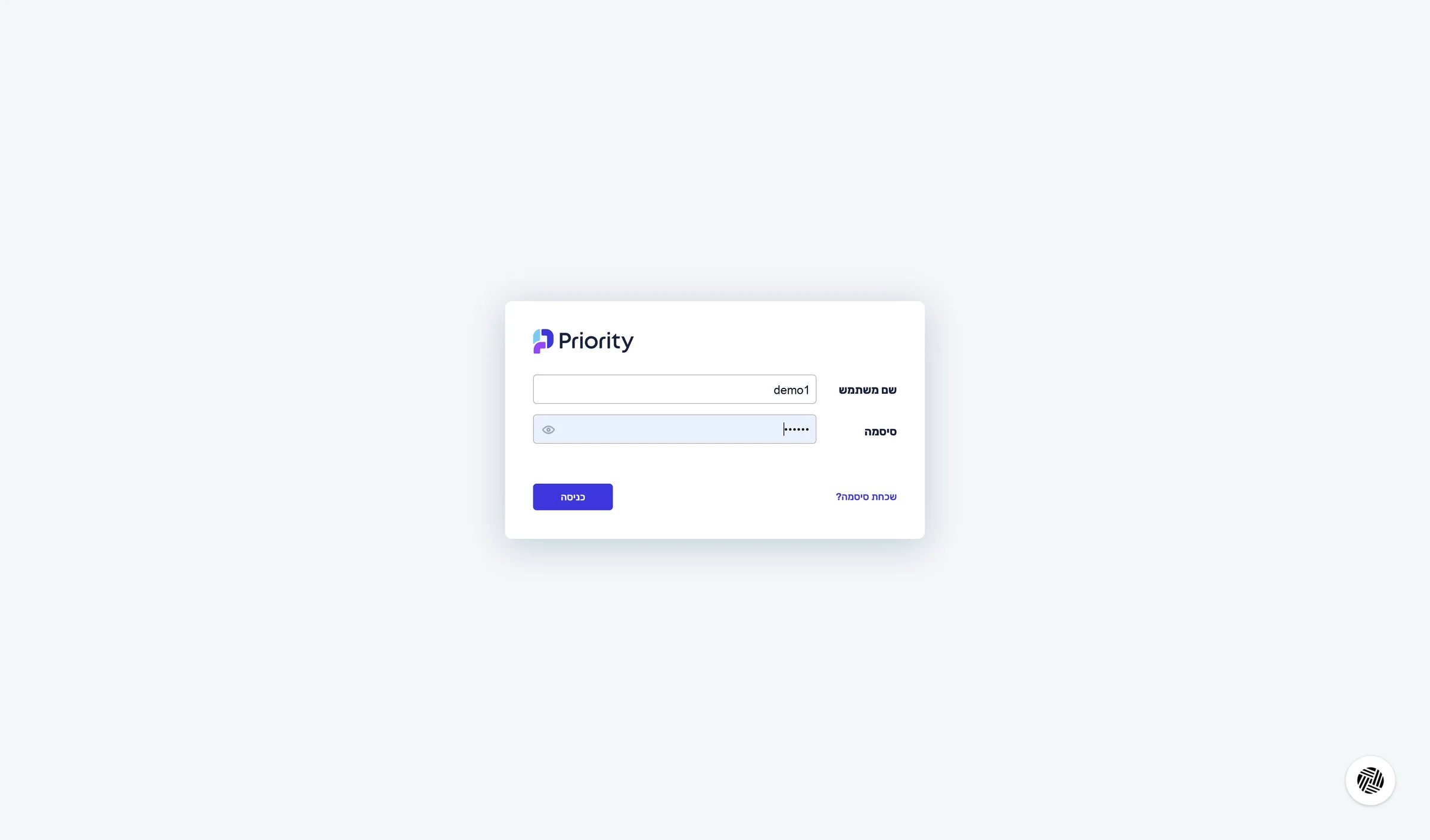
In a new tab, sign in to Priority's web interface with a user who has access to the System Management menu.
To connect Priority you need four details from the system: the API address, the company name, the settings file name and a personal access token. You get all of them from the System Management menu.
You are signed in to Priority and see System Management in the top menu.
2
Open System Management
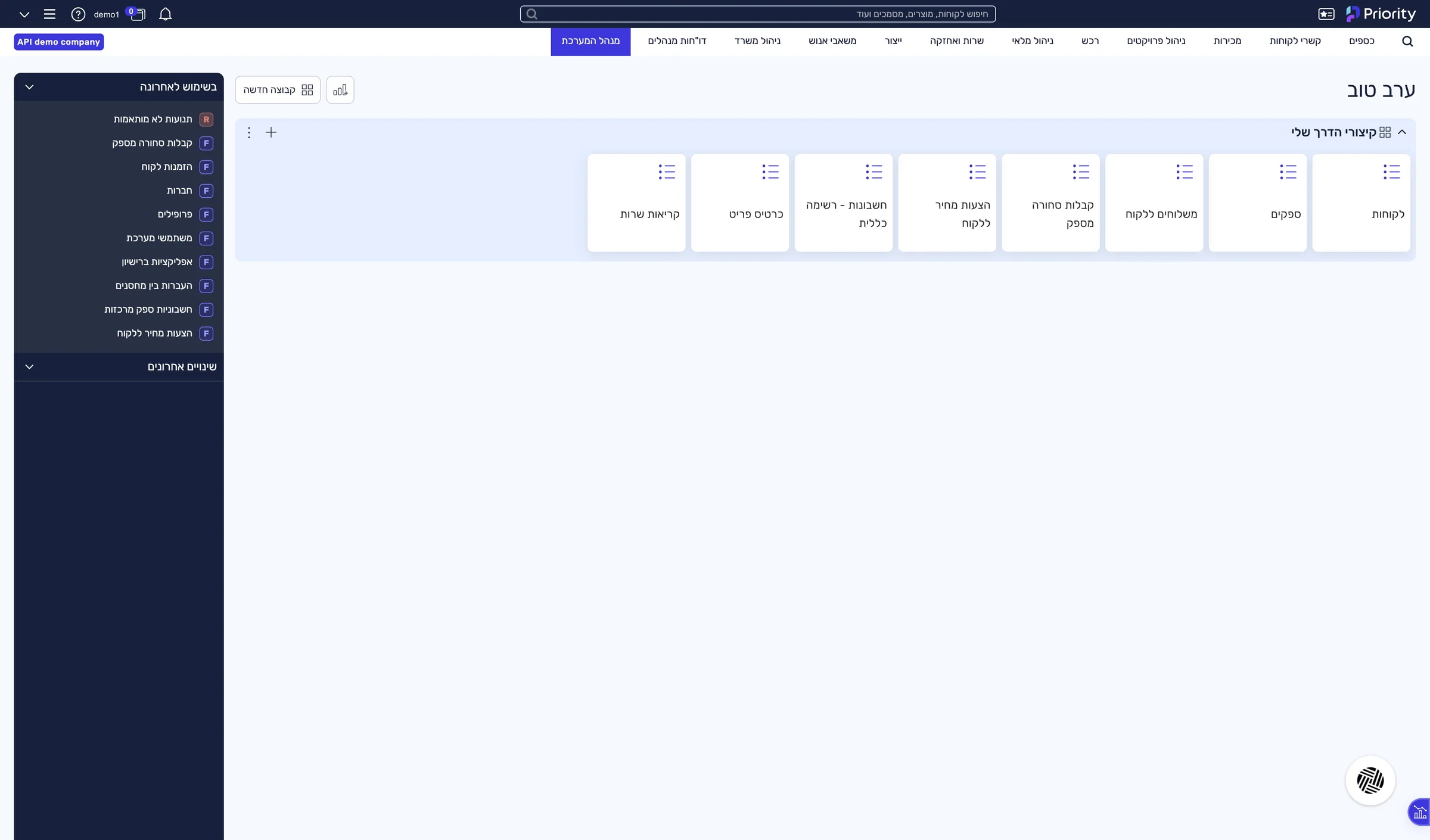
In Priority's top menu, click System Management.
The System Management menu is open.
3
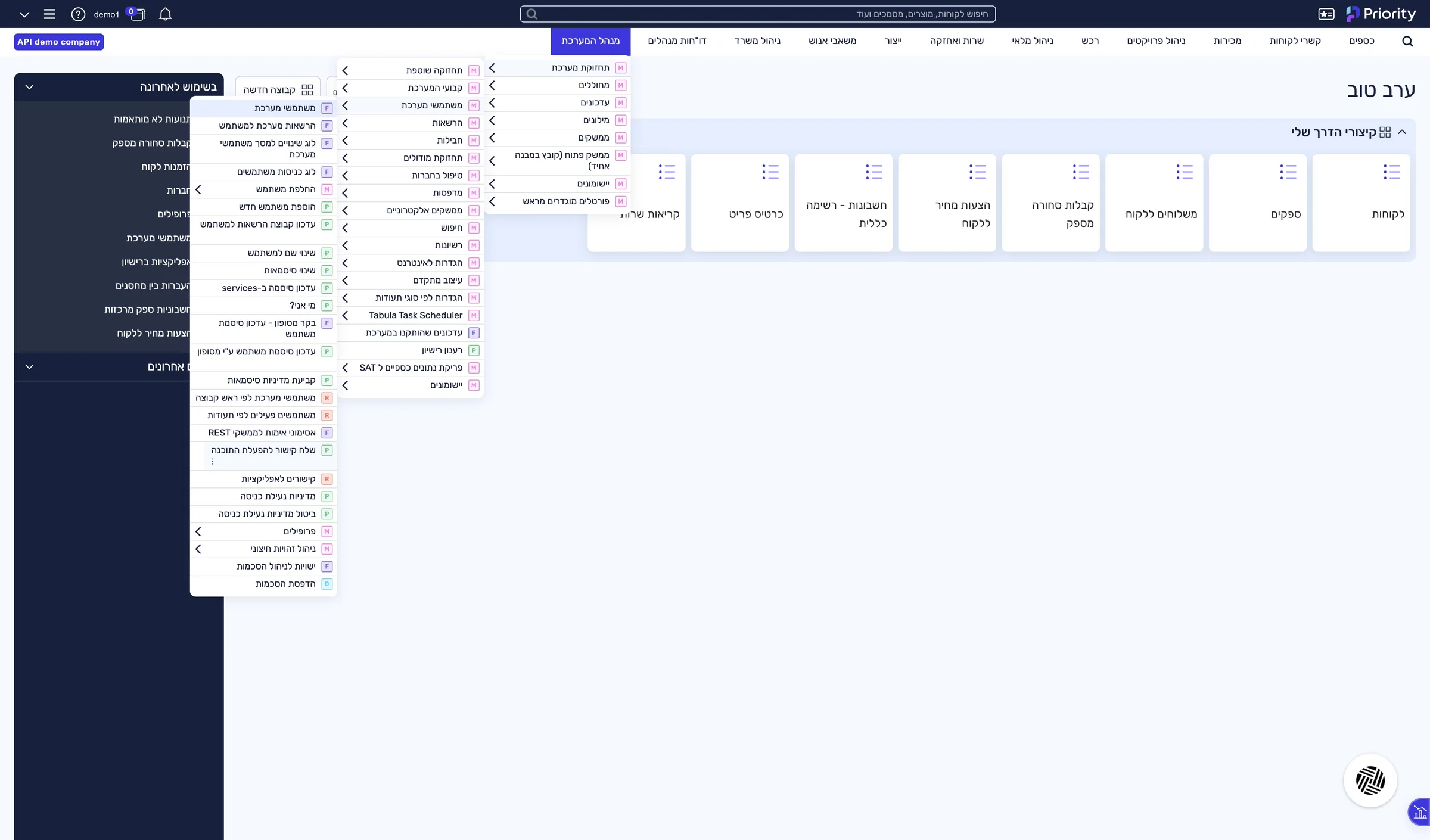
Open “Send Link to Activate Software”
System Maintenance › Users › Send Link to Activate Software
A “Request Type” window opens.
4
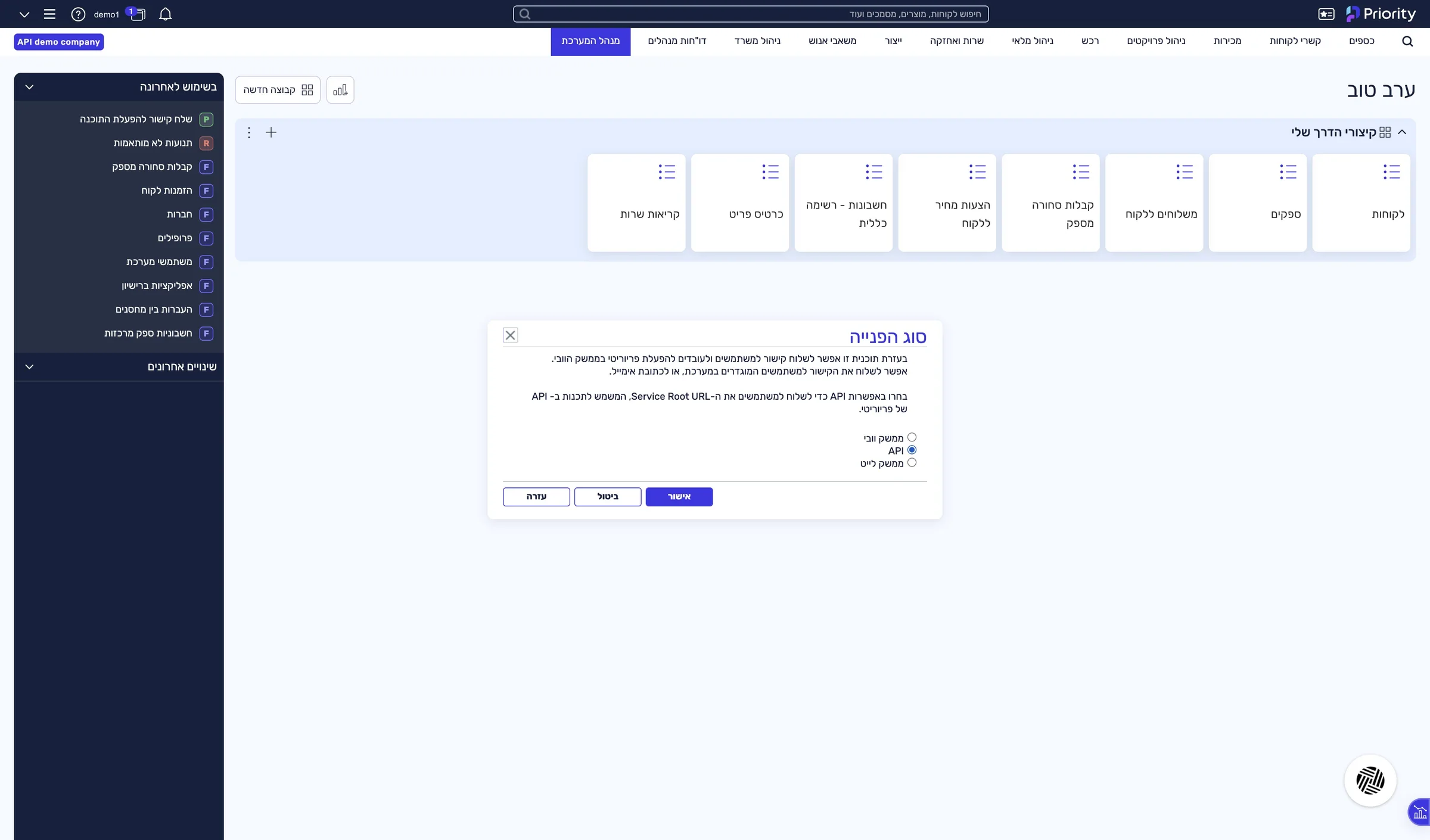
Choose API and confirm
Check API and click OK.
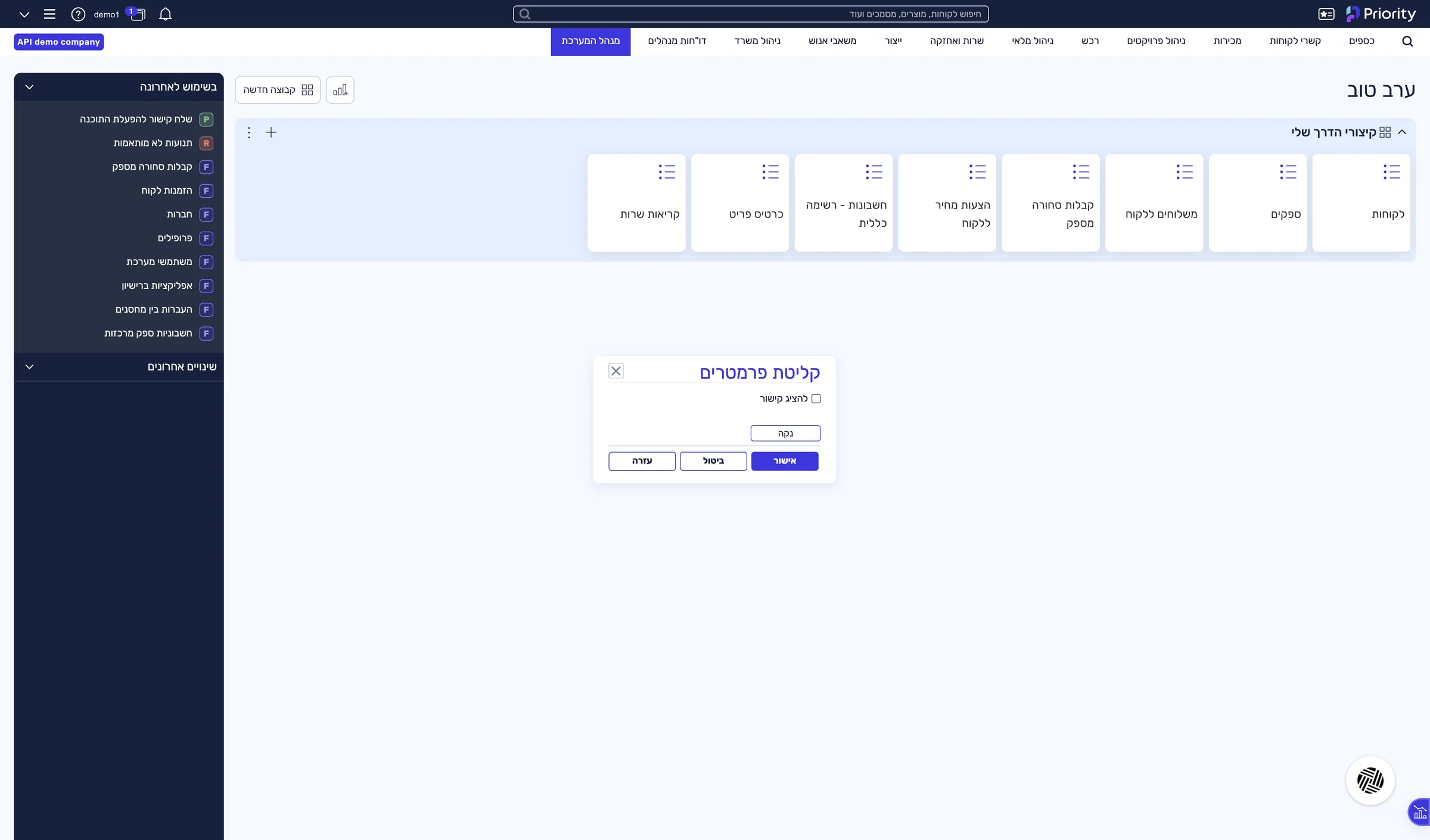
A “Parameter Input” window opens.
5
Check “Display link” and confirm
Check Display link and click OK.
A window with the address opens.
6
Copy the address in one piece
Select the full address and copy it (Ctrl+C).
The last two parts of the address are the settings file name and the company name — you will use them in a moment. The address breaks over two lines in the window: copy it as one piece, with no space.
The full address, ending in the company name, is on your clipboard.
What is in the address
The address you copied splits into three values you need for the connection: