

System Management › System Maintenance › Users › REST Interface Authentication Tokens
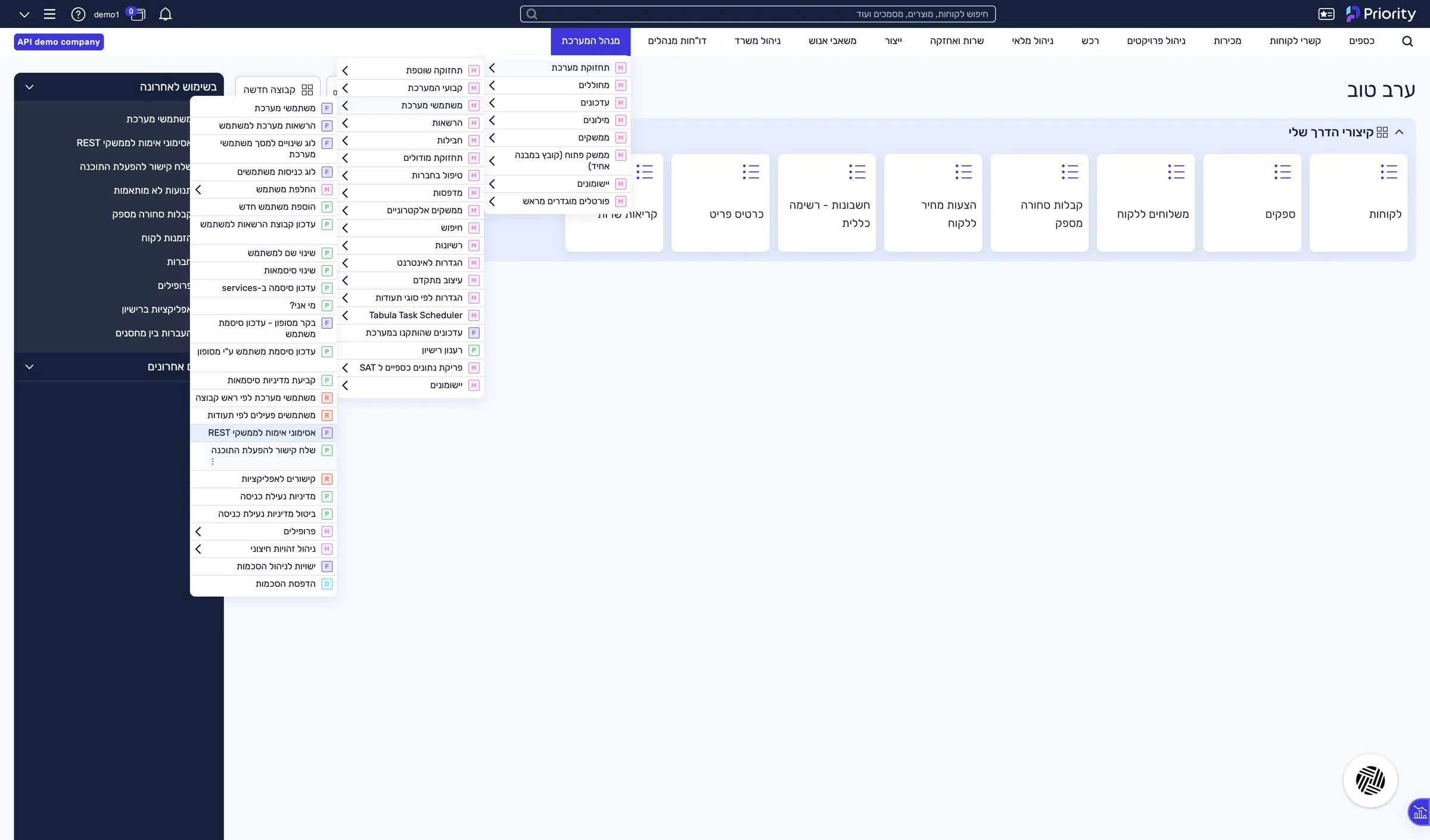
The “REST Interface Authentication Tokens” form is open, with the list of existing tokens.
Guide · Make
A token that lets LeonAI act in Priority as the user with the API licence.
System Management › System Maintenance › Users › REST Interface Authentication Tokens
The “REST Interface Authentication Tokens” form is open, with the list of existing tokens.
Click + New, and in the new form check the Create Token box.
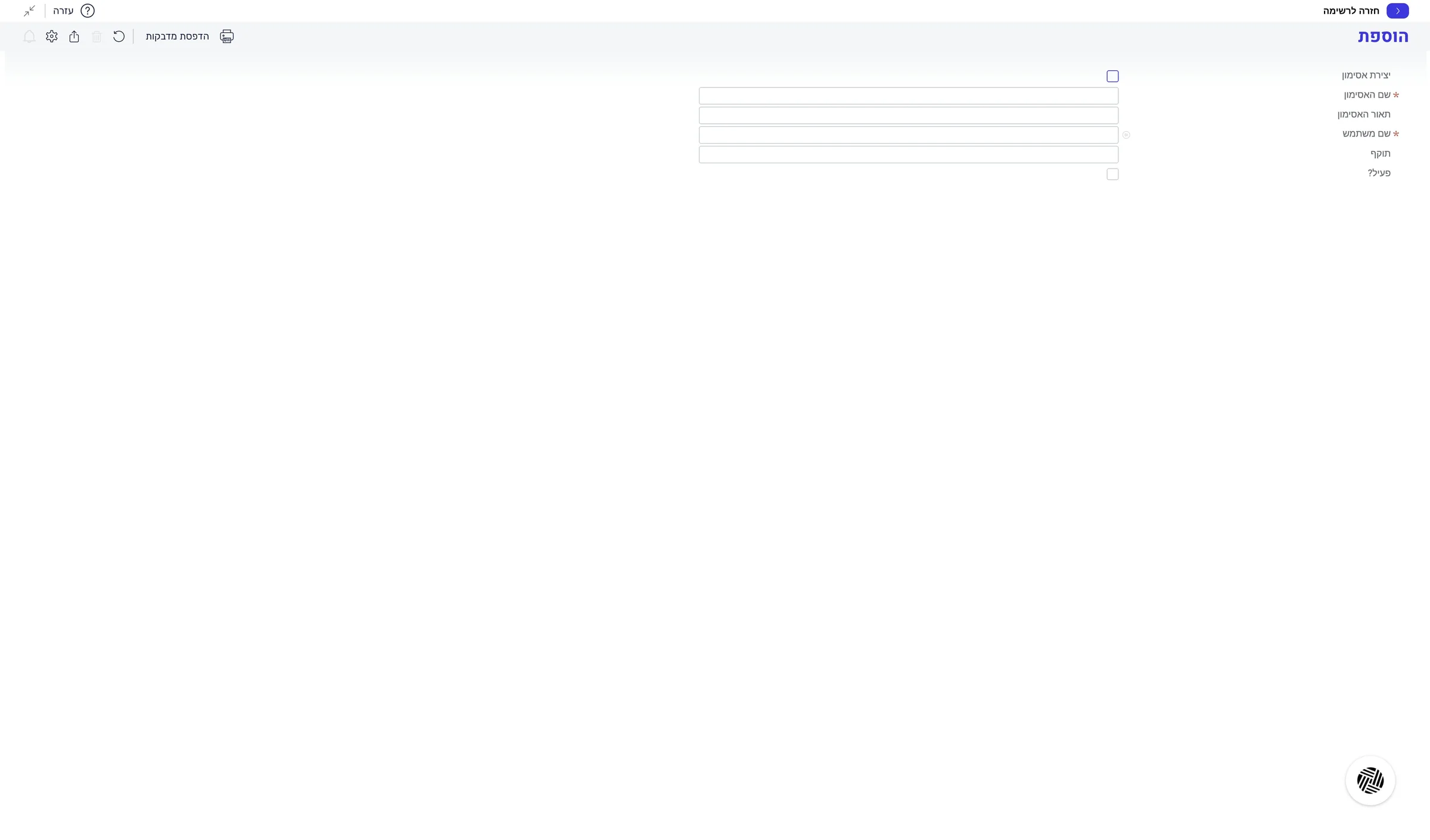
A message about saving the token appears.
In the message You must save the token before leaving the line, click OK.
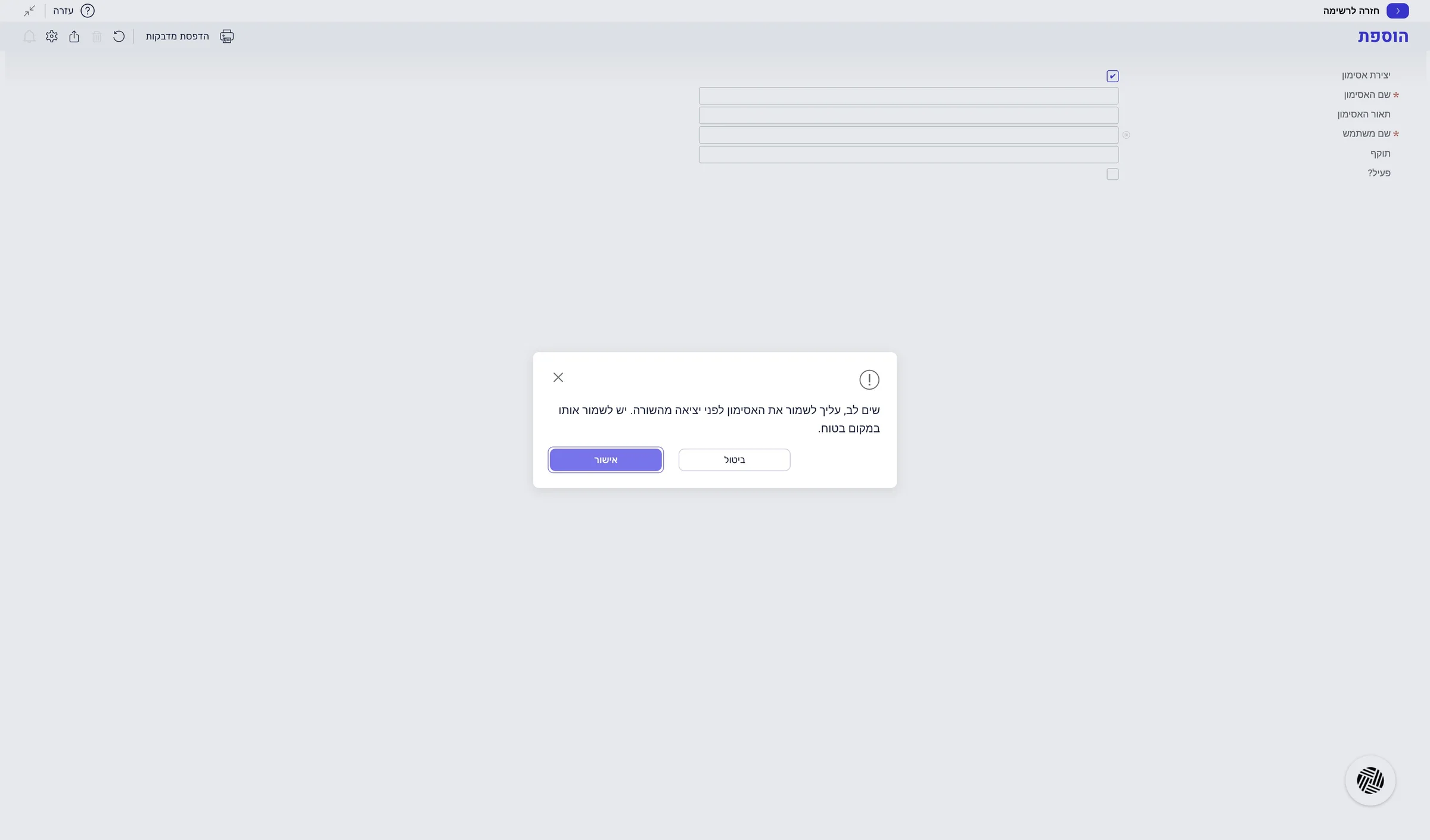
The message closed, and Priority filled in the token name.
Right-click the token in the Token Name field and choose Copy (or Ctrl+C). Keep it somewhere safe.
This is the only moment the full token is shown. Once you leave the line, it is hidden.
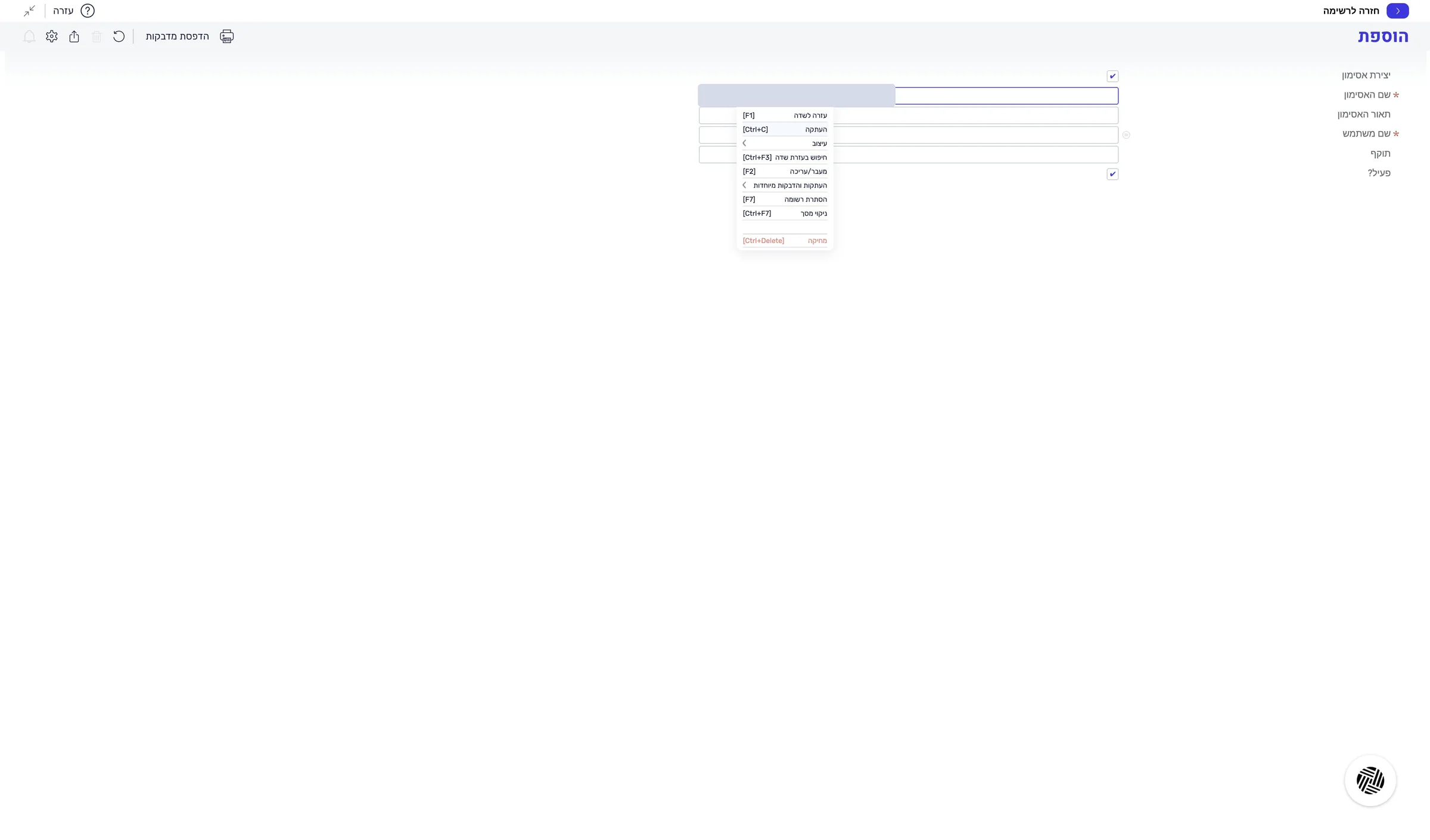
The full token is on your clipboard, and you have not left the line yet.
In the User Name field, choose the user you checked. You can also add a description, for example LeonAI.
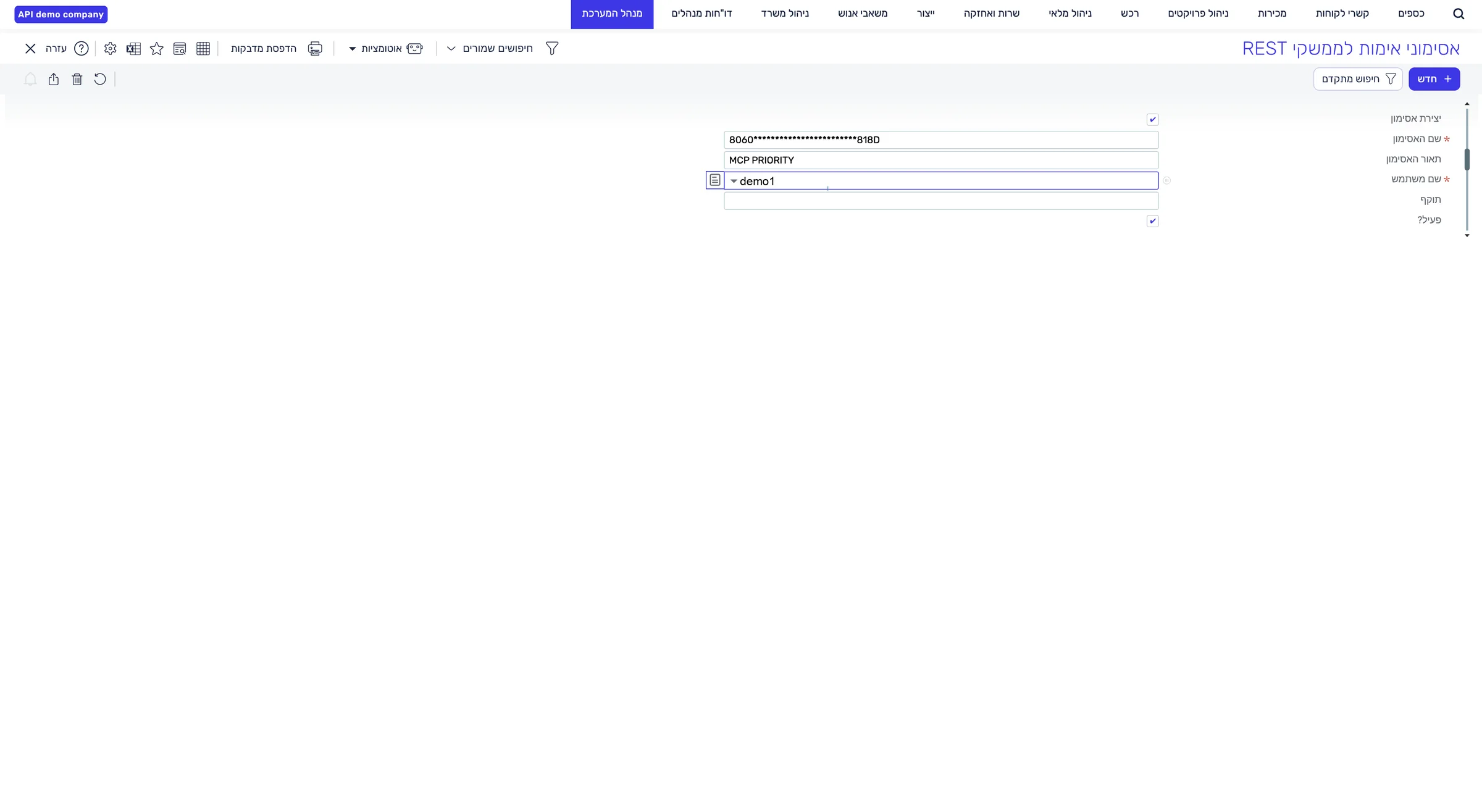
The user with the API licence is selected in the User Name field.
Make sure the Active? box is checked and click Back to list.
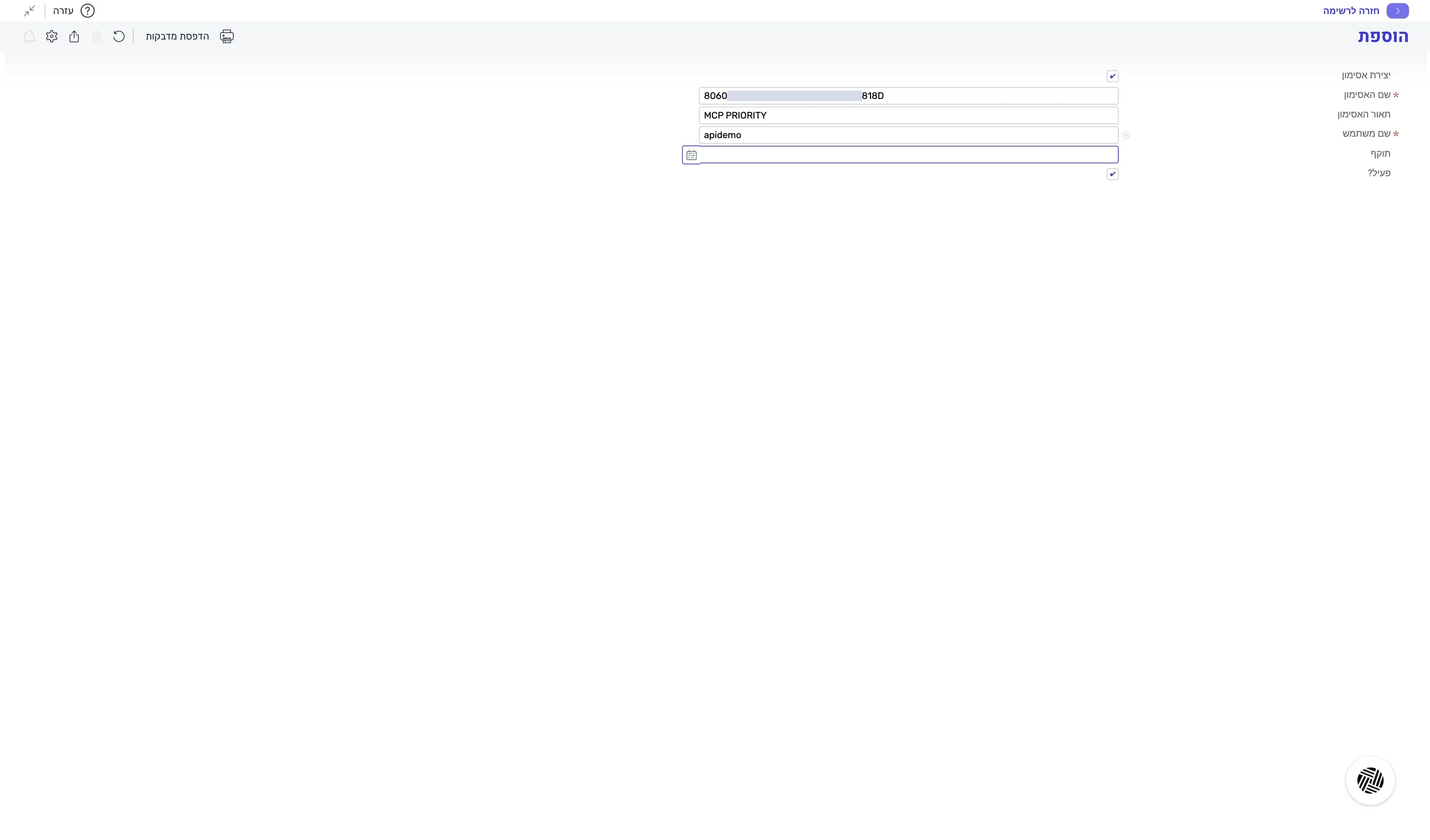
The new token appears in the list, hidden.
This guide is step 4 of 7 in the journey Connecting Priority to the LeonAI app in MakeThe same content, in its place in the sequence.
To the journey